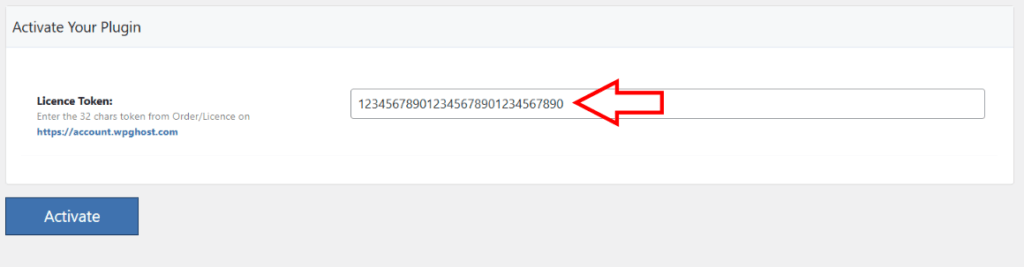
Managing your connected websites with WP Ghost is simple and efficient. Whether you need to change the activation token, update your WP Ghost license, or disconnect a website from your account, the process is easy.
This article explains how to disconnect a website using the block option in the WP Ghost Dashboard.
Disconnect a Website
- First, log in to your WP Ghost Dashboard account using the email address associated with your subscription.
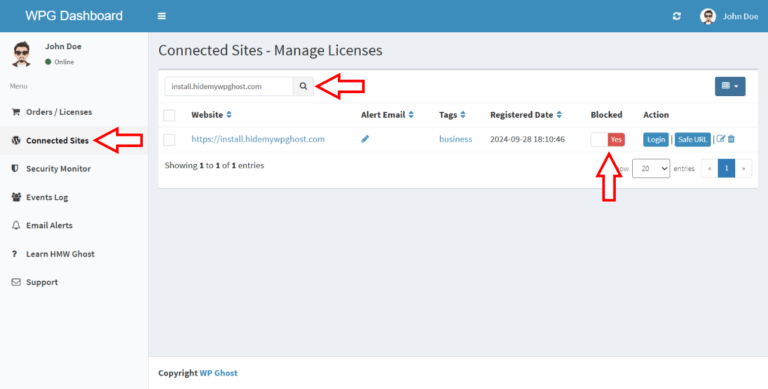
- Go to the Connected Sites section. This area provides a detailed list of all the websites connected to your WP Ghost account.
- Search for the website you wish to disconnect. Each website entry includes relevant information to help you quickly locate the site you want to manage.
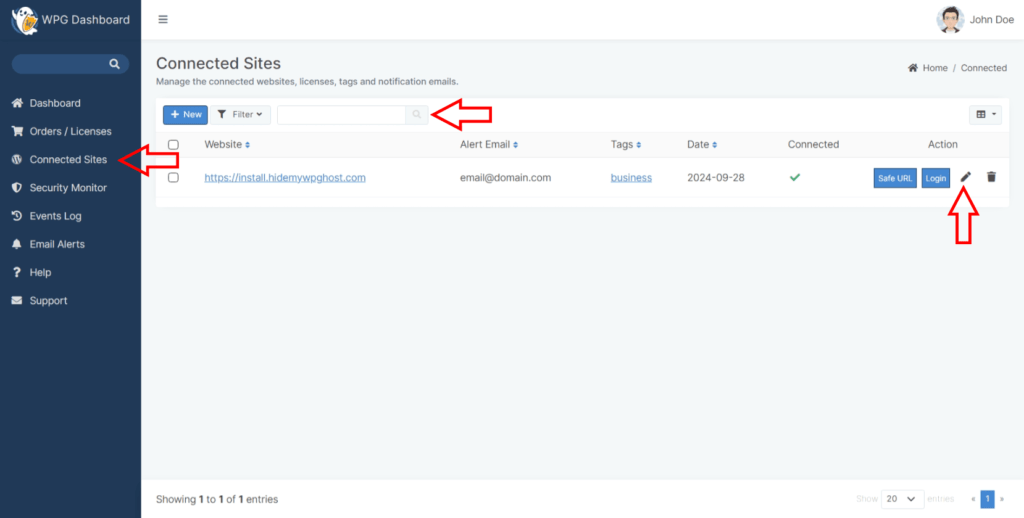
- Next to the website entry, you will find an option labeled Connected. If the website is connected, it can be activated with the activation token. Click on the edit icon to edit the website. Next to the Block Website option select Yes to block the website.
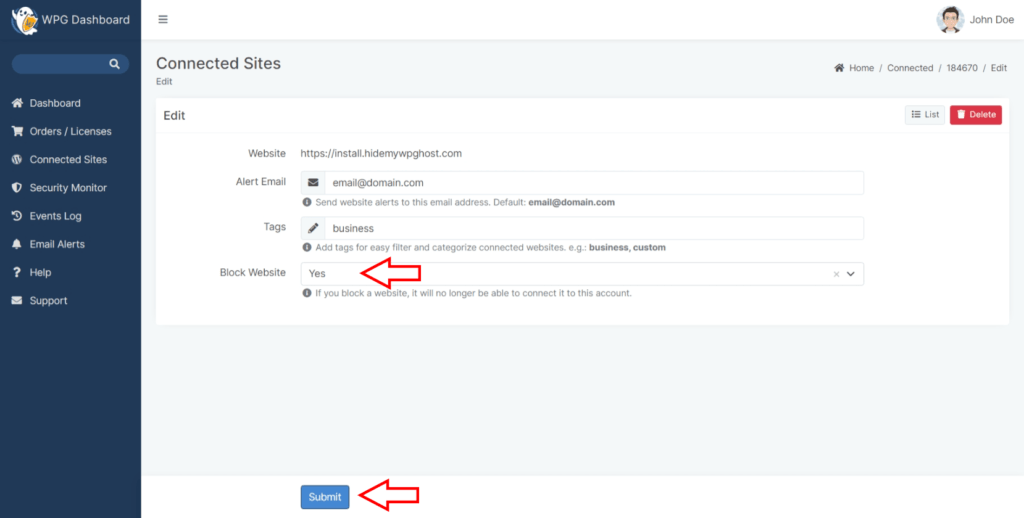
- Click the Submit button to apply the changes.
What Happens When a Website is Disconnected
Blocking a website means it will no longer have access to the WP Ghost Dashboard using your account or activation token. However, this action does not affect the functionality of the WP Ghost plugin itself on the website.
Additionally, disconnecting a website will not interfere with WordPress login access or administrative capabilities. The website’s WordPress functionalities remain fully operational. When the administrator of the disconnected website accesses the WP Ghost settings section, they will see the activation option displayed. This allows them to reactivate or manage the plugin as needed.