
Configure WP Ghost on a Cloud Panel server by setting the server type to Cloud Panel, generating the rewrite rules, then including the hidemywp.conf file in the Cloud Panel Vhost configuration above the {{settings}} line. Cloud Panel is a free hosting control panel that runs Nginx, MySQL, and PHP, popular for VPS deployments. Because Cloud Panel uses Nginx instead of Apache, WP Ghost can’t write to .htaccess like it does on Apache servers, the Nginx rules need to be loaded from a separate config file. This guide walks through the complete setup including the Cloud Panel-specific Vhost include step.
Before You Begin
You’ll need:
- A Cloud Panel server with Nginx installed (the default Cloud Panel configuration).
- A WordPress site running on Cloud Panel.
- Administrator access to both your WordPress dashboard and the Cloud Panel admin interface.
Install WP Ghost
Install WP Ghost like any other WordPress plugin. You can install the free version from the WordPress directory or the Premium version from your WP Ghost account. For step-by-step installation instructions, see Install WP Ghost Free Plugin or Install WP Ghost Premium Plugin.
Set Server Type to Cloud Panel
WP Ghost auto-detects most server types, but on Cloud Panel you should set it manually to ensure the correct rewrite rule format.
- Log in to your WordPress dashboard.
- Go to WP Ghost > Advanced > Compatibility.
- Find the Server type dropdown.
- Select Cloud Panel.
- Click Save.

Configure Custom Paths
Now configure your path security. WP Ghost offers three security levels, the right one depends on your plan:
Lite Mode (WP Ghost Free). Changes the most commonly targeted WordPress paths while keeping wp-admin and admin-ajax.php at their defaults. Fully compatible with Cloud Panel, this is the recommended starting point for free users.
Safe Mode (WP Ghost Premium). Extends Lite Mode to cover wp-admin and admin-ajax.php using rewrite techniques engineered for maximum compatibility, plus unlocks automated IP blocking, country blocking, AI crawler blocking, and the full Events & Threats Log. See the Cloud Panel Limitations section below for one known caveat about wp-admin rewrites on this server.
Ghost Mode (WP Ghost Premium). Everything Safe Mode does, plus file extension hiding and the tightest fingerprint removal WP Ghost offers. Recommended only after you’ve verified your stack with Safe Mode first.
- Go to WP Ghost > Change Paths > Level of Security.
- Customize the paths or use the predefined ones.
- Click Save.
WP Ghost generates the rewrite rules and writes them to hidemywp.conf in your WordPress root directory. You’ll see a notification asking you to add this file to your Cloud Panel Vhost configuration.

Add the Include Directive to the Vhost File
This is the Cloud Panel-specific step. You need to manually include the WP Ghost config file in your site’s Vhost configuration.
- Log in to your Cloud Panel admin interface.
- Go to your site and find the Vhost editor (usually under Settings > Vhost).
- Locate the
{{settings}}line in the Vhost configuration. - Add the include directive above the
{{settings}}line:
include /home/clp/htdocs/yoursite.com/hidemywp.conf;
{{settings}}- Replace the path with your actual WordPress installation path. The default Cloud Panel path is typically
/home/clp/htdocs/yoursite.com/. - Save the Vhost file.
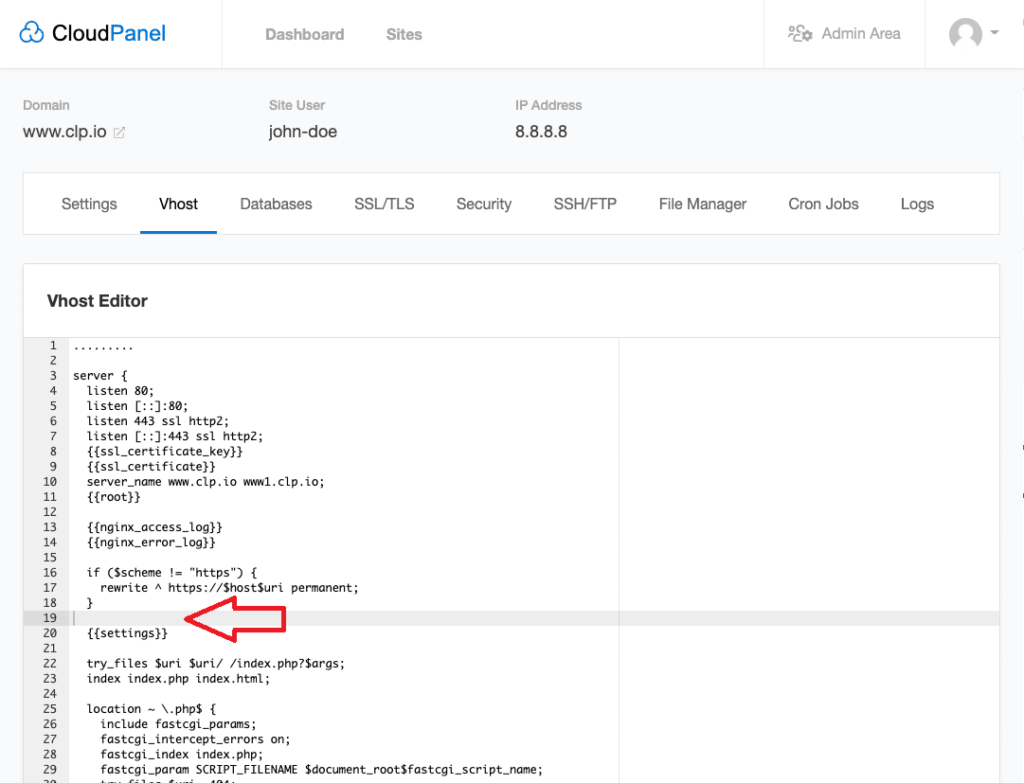

Important: The include directive must be placed above the {{settings}} line, not below. The {{settings}} placeholder is where Cloud Panel injects its own server configuration. Including the WP Ghost rules above ensures they’re loaded before Cloud Panel’s defaults take over.
Verify the Setup
After restarting Nginx, test that everything works:
- Visit your site and confirm pages load normally.
- Try accessing your custom login URL, it should work.
- Try accessing the default
/wp-login.php, it should return 404. - Run a Security Check to verify your full configuration.
Cloud Panel Limitations
Custom wp-admin path is not fully supported on Cloud Panel. If you rename the wp-admin path with WP Ghost (a Safe Mode or Ghost Mode feature, both Premium), you may still be redirected to the default /wp-admin on login. This is because Cloud Panel’s Vhost structure doesn’t allow Nginx to rewrite the wp-admin path consistently. The login path itself (wp-login.php) can be changed successfully, this limitation only affects the wp-admin directory rename.
Recommended workaround on Cloud Panel:
- Free users: Stay on Lite Mode. It doesn’t rename wp-admin at all, so it isn’t affected by this limitation, and it’s fully compatible with Cloud Panel.
Every other WP Ghost feature works on Cloud Panel: firewall, brute force protection, 2FA, security headers, and most path changes (login path, plugin paths, theme paths, uploads, wp-content, wp-includes, REST API).
Troubleshooting
Custom paths return 404 after saving WP Ghost
You probably haven’t added the include directive to the Vhost file yet, or you forgot to restart Nginx. Go to your Cloud Panel Vhost editor, verify the include /path/to/hidemywp.conf; line is present above {{settings}}, save, and restart Nginx.
Nginx fails to start after editing the Vhost
Cloud Panel validates the Vhost file before applying changes. If you see an error, the most common cause is a wrong file path in the include directive or a missing semicolon. Check the path matches your actual WordPress installation directory and ensure the line ends with a semicolon: include /home/clp/htdocs/yoursite.com/hidemywp.conf;
“hidemywp.conf not found” error
The file path in your Vhost include directive doesn’t match the actual file location. SSH into your server and run find / -name "hidemywp.conf" 2>/dev/null to locate the file. Update the include directive to use the correct path. Common locations: /home/clp/htdocs/yoursite.com/ or /var/www/yoursite.com/.
Login redirects to the default wp-admin
This is the known Cloud Panel limitation described above. Custom wp-admin paths can’t be fully rewritten on Cloud Panel. Free users: stay on Lite Mode (Lite Mode doesn’t rename wp-admin, so this limitation doesn’t apply). Premium users: keep Safe Mode (or Ghost Mode) active, but set the wp-admin path back to its default in WP Ghost > Change Paths > Admin Security. All other Premium path security features still work.
Locked out of WordPress after configuration
Use the Safe URL parameter to bypass WP Ghost temporarily. If that doesn’t work, see the Emergency Disable guide to recover access via FTP.
Frequently Asked Questions
Do I need to restart Nginx every time I save WP Ghost?
Yes. Nginx loads its configuration at startup and keeps it in memory. Whenever WP Ghost updates the hidemywp.conf file (which happens any time you save Change Paths settings), you must restart Nginx for the new rules to take effect. Use the restart button in Cloud Panel or run the restart command via SSH.
Which WP Ghost mode should I pick on Cloud Panel?
It depends on your plan. Free users: use Lite Mode, it’s fully compatible with Cloud Panel and isn’t affected by the wp-admin rewrite limitation. Premium users: use Safe Mode (the recommended Premium default) and leave the wp-admin path at its default to avoid the known Cloud Panel limitation. All other Premium features (automated IP blocking, country blocking, AI crawler blocking, Events & Threats Log) work normally. Ghost Mode also works on Cloud Panel, but carries the same wp-admin caveat and should be tested with your full plugin stack first.
Is Cloud Panel the same as CyberPanel?
No. Cloud Panel uses Nginx by default and is made by Hetzner. CyberPanel uses OpenLiteSpeed by default. They have different Vhost configurations and different ways of handling rewrite rules. If you’re on CyberPanel, see the OpenLiteSpeed .htaccess setup guide instead.
Does this work with WooCommerce?
Yes. WP Ghost is fully compatible with WooCommerce on Cloud Panel. Cart, checkout, product pages, and customer accounts all work normally with the configuration described above. Free WooCommerce stores: use Lite Mode. Premium WooCommerce stores: use Safe Mode, engineered for ecommerce plugin ecosystems.
Does WP Ghost modify WordPress core files?
No. WP Ghost writes rewrite rules to hidemywp.conf (a separate config file in your WordPress directory) and uses WordPress hooks. No core files are modified. Deactivating WP Ghost restores all defaults instantly.
Related Tutorials
Server configuration for WP Ghost:
- Lite Mode vs Safe Mode vs Ghost Mode, pick the right security level for your plan.
- Setup WP Ghost on Nginx Server, standard Nginx configuration for WP Ghost.
- Add Custom Config File for Nginx, alternative location for the WP Ghost config file.
- Server Types, all server types supported by WP Ghost.
- Install WP Ghost, initial WP Ghost installation guide.
- Emergency Disable, recovery if rewrite rules cause issues.