
If author page links return 404 errors or redirect to the wrong page after changing the author path in WP Ghost, cached pages or hardcoded links still reference the old /author/ path.
Clear all caches
Cached pages contain the old author URLs. Clear your WordPress cache plugin, CDN cache, and browser cache. Check author links on the frontend in an incognito window to confirm they use the new path.
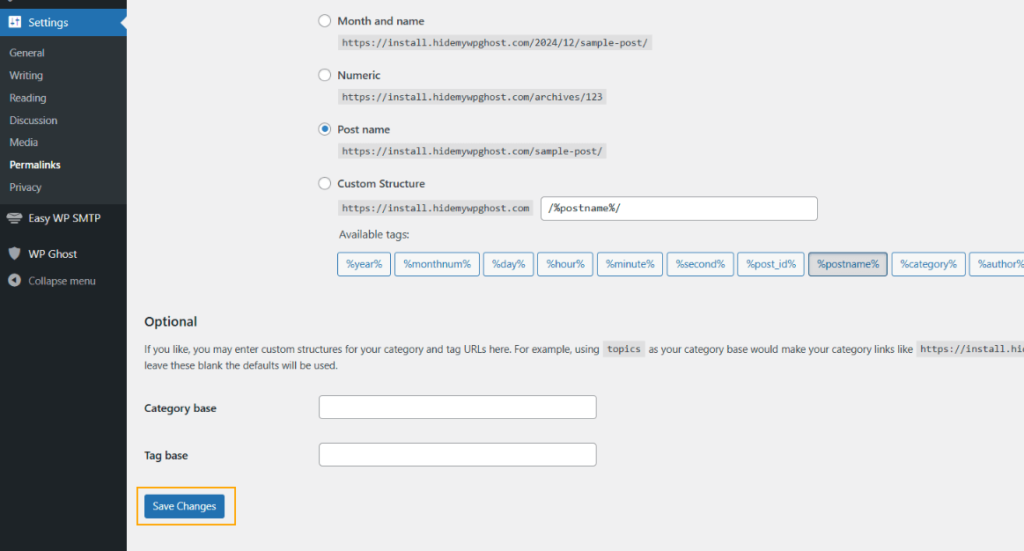
Flush permalink settings
Go to Settings > Permalinks and click Save Changes without modifying anything. This regenerates WordPress’s rewrite rules. Author archive URLs depend on the permalink structure, and flushing ensures the new author path is registered in the rewrite rules.
Update hardcoded author links
WordPress automatically updates author links generated by functions like get_author_posts_url(). However, hardcoded links in post content, widgets, theme templates, or custom menus still point to the old /author/ path. Search your content and theme files for /author/ and update them to the new path. Alternatively, use WP Ghost’s Text Mapping to replace /author/ with your custom path automatically in the HTML output.
Check SEO plugin sitemaps
If you use an SEO plugin (Yoast, Rank Math, All in One SEO), regenerate your sitemap after the author path change. Old sitemaps may still list author pages with the /author/ prefix, which search engines will follow to 404 pages. Most SEO plugins regenerate sitemaps automatically when permalinks are flushed.
If you’ve lost access to the admin dashboard, see the emergency disable guide.