

Why Monitoring Security Threats Matters
Websites are continuously targeted by automated scanners and attack bots that probe for known vulnerabilities, common file paths, and exploitable endpoints.
WP Ghost prevents these attacks proactively by reducing your site’s attack surface and blocking malicious requests before they reach WordPress.
The Security Threats Log gives you full visibility into this hostile traffic, allowing you to understand what is being targeted, from where, and how often.
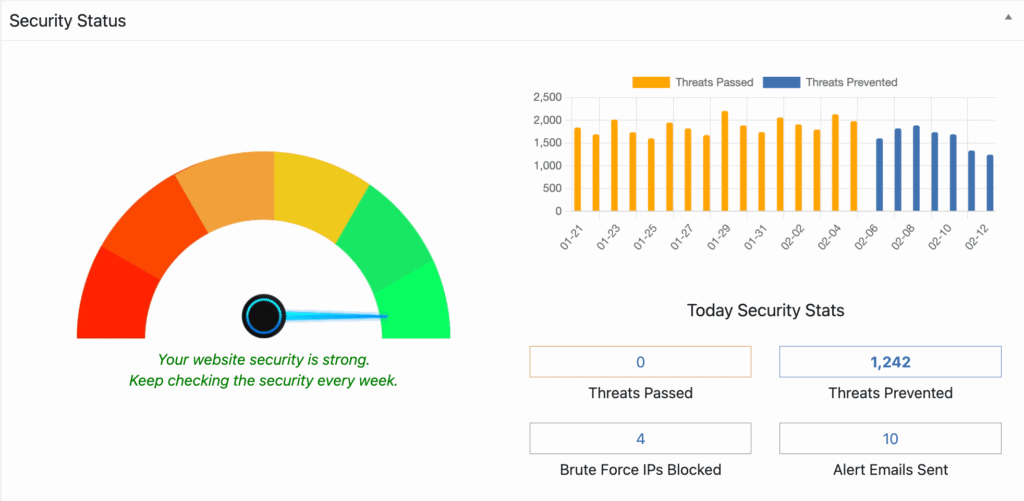
This log focuses exclusively on external threats, not user activity.
Activate Security Threats Log
- Go to WP Ghost > Logs > Settings.
- Enable Log Security Threats.
- Select how long to keep logs locally using Retention (in days).
- Click Save to apply the changes.
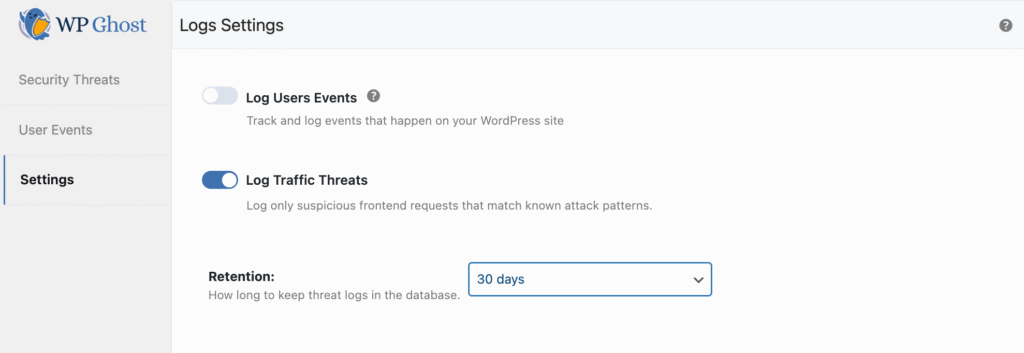
Once enabled, WP Ghost automatically starts recording detected threats. No additional configuration is required.
What Is Logged as a Security Threat
The Security Threats Log records malicious or suspicious requests detected by WP Ghost protections, including:
- Probing for vulnerable or non-existent PHP files
- Exploit scanning against plugins, themes, or core files
- Malformed or suspicious HTTP requests
- Repeated hostile traffic from the same IP address
Each log entry documents attempted attacks, even when they are fully blocked.
Security Threats Log GDPR & Data Storage
When the Security Threats Log is enabled, all detected threats are stored locally in the WordPress database table hmwp_logs.
Stored data includes:
- Threat type
- Targeted path or URL
- Source IP address and country
- HTTP method and protocol
- Detection rule and matched pattern
- Date and time
- Block status (for example: Prevented)
This data is collected strictly for security monitoring and incident analysis.
For statistical and reporting purposes, the plugin also sends aggregated, non-personal data to the WP Ghost Dashboard. This includes only the date and the total number of detected threats, without IP addresses, URLs, or request details.
No individual visitor data or sensitive request information is transmitted as part of this statistic.
Security Threats Log Report
You can view detected threats at:
WP Ghost > Logs > Security Threats

From this screen, you can:
- See all detected threats in chronological order
- Identify attack types and targeted paths
- View source IPs and countries
- Confirm whether threats were blocked
- Detect recurring or coordinated attack patterns
This report helps validate that WP Ghost protections are working as intended.
Filter and Search the Threats Report
The Threats Report includes built-in tools to help you analyze activity:
- Filter by Threat Type to isolate specific attack vectors
- Filter by Status (for example: Prevented)
- Filter by Country to analyze regional attack patterns
- Filter by Time Range to investigate recent incidents
- Search by keyword, path, or IP address

These filters allow you to quickly pinpoint relevant security events without scrolling through large datasets.
Starting with WP Ghost 9.0, the Security Threats Log includes a Country filter that lets you isolate threats originating from a specific country.
This is useful when you want to investigate attack patterns from a particular region, assess whether to enable Country Blocking for specific countries, or understand which regions generate the most malicious traffic to your site.
Threat Actions and Response Options
Each threat entry includes an action menu that lets you respond immediately.
Threat Details

Selecting Threat Details opens a detailed view showing:
- Full request path
- Source IP address
- HTTP status returned
- Detection rule and matched pattern
- User agent and referrer
- Protocol and request metadata
- Unique request ID
This information is essential for understanding why the request was flagged and how WP Ghost handled it.
Whitelist Path

Use Whitelist Path if a legitimate request is being blocked and you want to allow access to a specific URL or endpoint.
Whitelisted paths are managed in:
WP Ghost > Firewall > Whitelist
Whitelist Rule
Use Whitelist Rule to allow requests that match a specific detection rule or pattern.
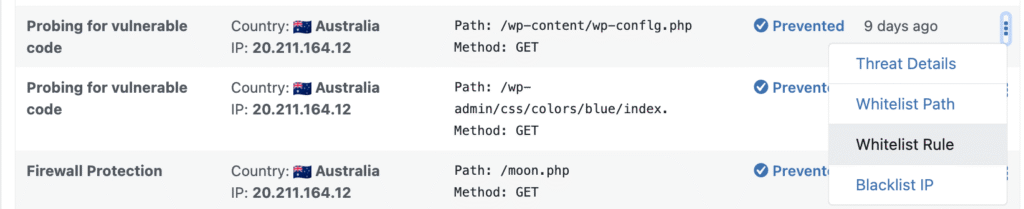
This is useful for trusted integrations or custom applications that trigger security rules unintentionally.
Whitelist rules are managed in:
WP Ghost > Firewall > Whitelist
Blacklist IP
Use Blacklist IP to permanently block a malicious IP address that repeatedly targets your site.

Blacklisted IPs are managed in:
WP Ghost > Firewall > Blacklist
Manage Whitelist and Blacklist Entries
All whitelist and blacklist entries created from the Threats Log are centrally managed in the Firewall section:
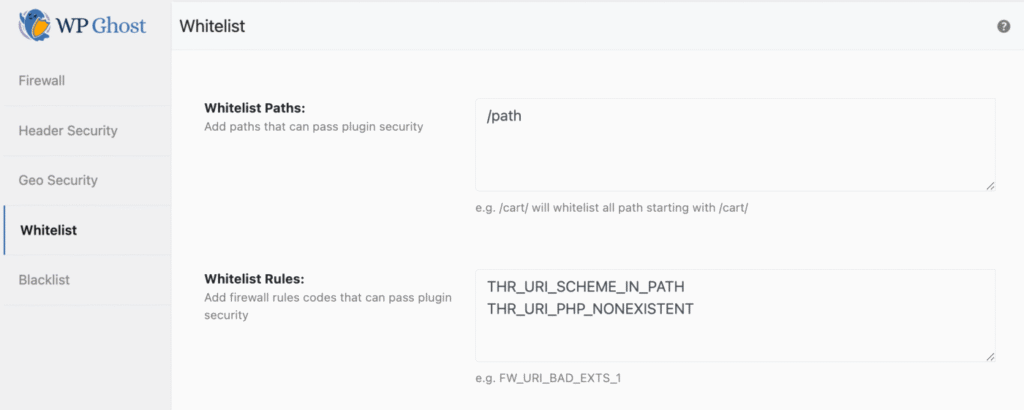
- Firewall > Whitelist
- Whitelisted paths
- Whitelisted detection rules
- Firewall > Blacklist
- Blocked IP addresses
This ensures a single, consistent place to manage all firewall exceptions and blocks.