

What is Login Page Design in WP Ghost?

The Login Page Design feature in WP Ghost allows you to customize the visual appearance of your WordPress login page without affecting its security or functionality.
Instead of using the default WordPress login (which is recognizable and often targeted), you can create a clean, branded, and professional login experience directly from WP Ghost.
This improves both:
- Security perception, by removing the standard WordPress look
- User experience (UX) for admins and clients
Why Customize the WordPress Login Page?
Customizing your login page is not just about design, it’s part of architectural hardening and brand control.
Key Benefits
- Brand Consistency: Replace the default WordPress logo and styling with your own identity.
- Reduced CMS Fingerprinting: Loads only essential login scripts, preventing WordPress from loading unnecessary admin-path files on the login page. Default login pages signal “this is WordPress.” Custom design removes this obvious footprint.
- Improved User Trust: Clients and team members interact with a professional interface instead of a generic login.
- Better UX for Teams & Clients: Clean layouts, proper spacing, and visual clarity reduce friction during login.
In WP Ghost’s philosophy, even small UI changes contribute to attack surface reduction and perception control, which are critical in proactive security.
How Login Page Design Works
The feature modifies the frontend login interface without changing core WordPress files.
Like other WP Ghost features:
- It uses safe overrides and styling layers
- It maintains full compatibility with themes and plugins
- It does not break updates or login functionality
This aligns with WP Ghost’s architecture where:
- Paths remain secure
- Core remains untouched
- Only the visible layer is optimized
How to Activate Login Page Design
- Go to WP Ghost > Tweaks > Login Page Design
- Switch on the option Login Page Design to enable the feature
- Customize the design options
- Click Save to apply the changed
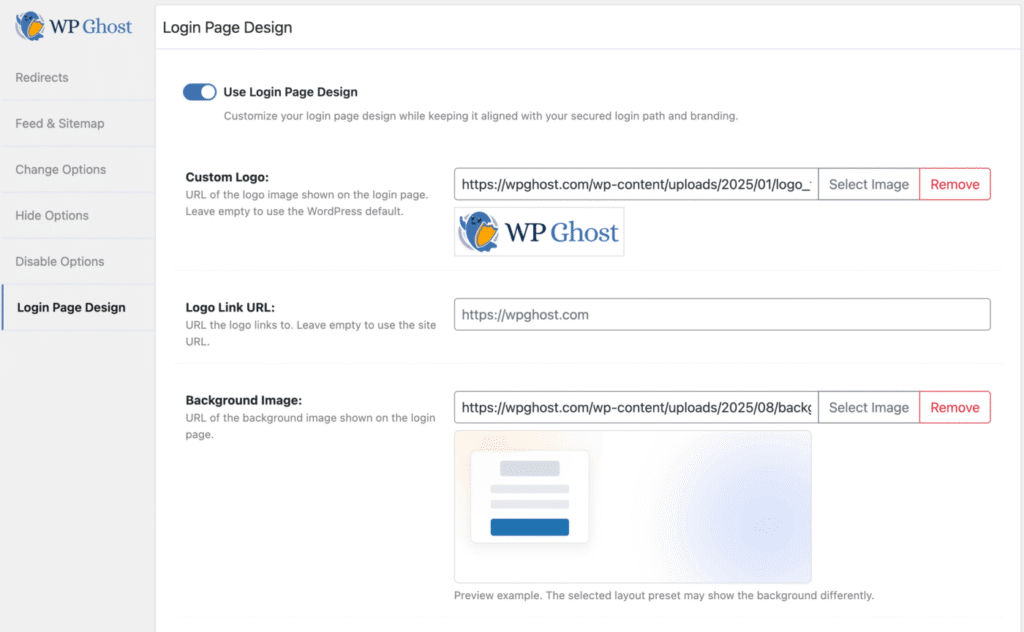
What You Can Customize
The Login Page Design feature in WP Ghost gives you simple controls to create a clean, branded login experience—without technical complexity.
Custom Logo & Branding
- Custom Logo – Replace the default WordPress logo with your own brand
- Logo Link URL – Send users to your homepage or dashboard
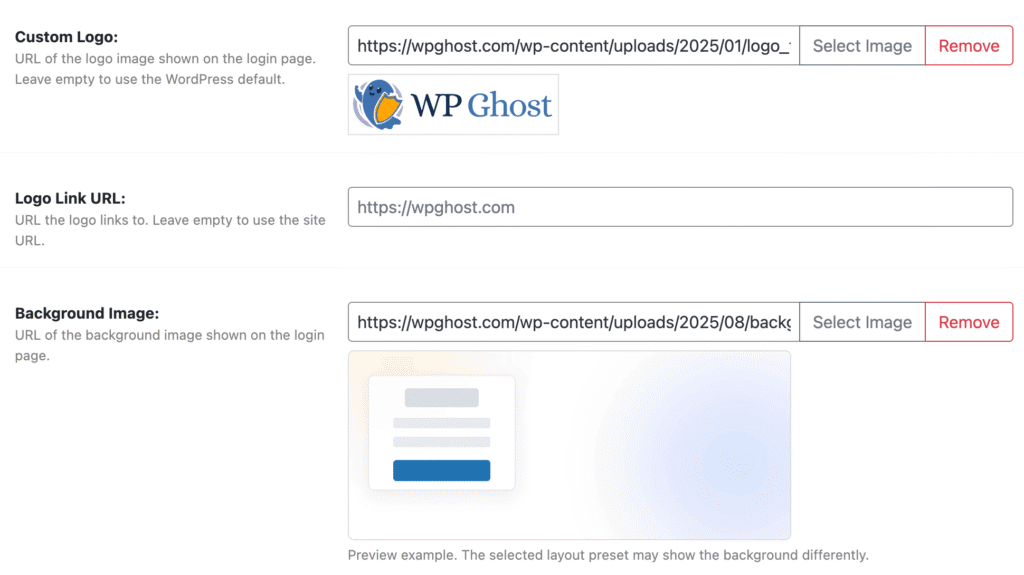
Benefit: Removes WordPress identity and builds trust with a professional, white-label login.
Background & Visual Style
- Background Image – Add a full-screen image for a modern look
- Background Overlay – Improve readability over images
- Background Blur – Keep focus on the login form
- Page Background Color – Set a clean fallback or minimalist style
Form & UI Colors
- Form Background Color – Highlight the login box
- Text Color – Ensure readability and contrast
- Link Color – Keep consistency across actions

Benefit: Creates a visually appealing login page while keeping the form easy to read.
Layout Presets
Choose how the login page is structured:
- Classic / Framed / Frosted Panel – Clean centered layouts
- Split Layouts (Balanced, Feature, Media Left/Right) – Modern SaaS-style designs
- Minimal / Focus / Overlay – Distraction-free login experience

Benefit: Instantly switch between professional layouts without design work.
Color Presets (Quick Styling)
Predefined themes like:
- Polar Mist, Deep Horizon, Soft Bloom, Night Frame, Evergreen

Benefit: One-click styling for fast setup with visually consistent results.
Best Practices for Login Page Design
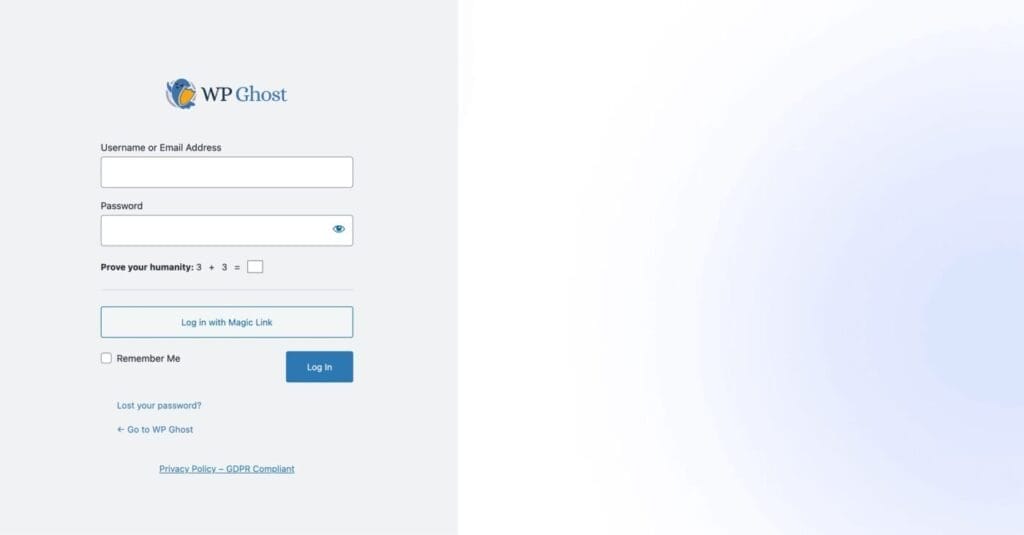

To maximize both usability and security, follow these guidelines:
1. Keep It Minimal
Avoid clutter. A simple login page reduces confusion and improves load speed.
2. Use Neutral, Professional Colors
Dark overlays or soft gradients work best for readability and modern UX.
3. Replace the Default Logo
Never leave the WordPress logo visible, it’s a clear CMS indicator.
4. Combine with Login Security
For best results, use Login Page Design together with:
Troubleshooting
Why is the login page not updating after changing the Login Page Design?
- In most cases, the login page doesn’t update because you’re still seeing a cached version. Clear your cache at every level, WordPress cache plugin, CDN (like Cloudflare), and server cache. Then do a hard refresh in your browser.
- If the issue persists, temporarily disable caching and test again. This helps confirm whether cache is blocking the changes. Also make sure the settings are saved correctly in WP Ghost > Tweaks > Login Page Design and the feature is active.
- Another common cause is that your theme or another plugin is overriding the login page. Some themes include their own login customization options, which can take priority over WP Ghost. Check your theme settings and disable any login design options if available.
Why doesn’t the login page look correct after selecting a preset?
- When a preset looks broken or inconsistent, it’s usually due to CSS conflicts. This happens when multiple sources try to style the login page at the same time.
- If you’re using other login customization plugins, disable them and keep only one system active. Running multiple login design plugins will always create layout issues.
- Themes can also inject their own styles into the login page. If your theme has login customization options, disable them. If it doesn’t offer that option, the safer approach is to use the theme’s login design instead of forcing WP Ghost styling, to avoid conflicts.
- For best results, apply a preset first, then adjust colors or details afterward. Mixing presets with existing custom styles can sometimes create unexpected visual results.