
- What Is XML-RPC in WordPress?
- Why You Need to Disable XML-RPC
- How to Disable XML-RPC with WP Ghost
- What Happens After You Disable XML-RPC
- Plugin Compatibility: Jetpack and Others
- Troubleshooting
- Frequently Asked Questions
- What is system.multicall and why is it dangerous?
- Do I need XML-RPC for anything?
- What’s the difference between XML-RPC and the REST API?
- What is pingback DDoS and how does disabling XML-RPC stop it?
- Does this affect WooCommerce?
- Will the WordPress mobile app still work?
- Does WP Ghost delete the xmlrpc.php file?
- Related Tutorials
Block WordPress’s most abused legacy endpoint by disabling XML-RPC access with WP Ghost. The xmlrpc.php file is a relic from before the REST API existed. Most modern WordPress sites don’t need it at all. But it’s still active by default, and attackers love it. A single HTTP request through system.multicall can send up to 1,999 password guesses at once – bypassing login rate limiting, CAPTCHA, and most security plugin protections. One toggle shuts it down.
What Is XML-RPC in WordPress?

XML-RPC (XML Remote Procedure Call) is a protocol that lets external applications communicate with your WordPress site remotely. It was WordPress’s original API, predating the REST API by years, and it handles requests through a single file: xmlrpc.php.
By default, the file sits at: https://yourdomain.com/xmlrpc.php
XML-RPC was designed for legitimate uses: publishing posts from mobile apps, managing multiple WordPress sites from a single dashboard, enabling trackbacks and pingbacks, and allowing third-party tools to interact with your site. In its era, it was essential. Today, almost everything it does has been replaced by the REST API, which is more secure, more flexible, and better supported.
The problem is that xmlrpc.php is still active on every default WordPress installation. And unlike the REST API, it has almost no built-in security controls. No rate limiting. No CAPTCHA. No login attempt tracking. It’s a wide-open door that most security plugins don’t even monitor.
Why You Need to Disable XML-RPC
XML-RPC is one of the most abused WordPress endpoints. Not because it’s inherently flawed, but because of how it handles authentication combined with a feature called system.multicall. Here’s why disabling it is critical for your hack prevention strategy:
Brute force attacks are amplified by 1,000x. This is the big one. The system.multicall method allows multiple XML-RPC calls to be bundled into a single HTTP request. Attackers exploit this to send hundreds or even thousands of username/password guesses in one request. Instead of 500 separate login attempts (which security plugins would detect and block on wp-login.php), an attacker sends a single POST to xmlrpc.php containing 500 authentication attempts. Login rate limiters don’t see 500 requests – they see one. Publicly available exploit tools can send up to 1,999 authentication attempts per HTTP request. That’s brute force amplification, and it’s devastating.
Most security plugins don’t monitor it. Security researchers consistently note that the majority of WordPress security plugins focus their protection on /wp-login.php while leaving xmlrpc.php completely unmonitored. Attackers know this. They’ve shifted from targeting the login page to targeting XML-RPC specifically because it flies under the radar. In 2025, malware campaigns actively use XML-RPC for site fingerprinting and credential stuffing without triggering common defenses.
DDoS amplification through pingbacks. The pingback.ping method can be abused to launch distributed denial-of-service attacks. An attacker sends pingback requests to thousands of WordPress sites, all pointing back to a single target. Each site makes a request to the target, amplifying the attack massively. Your site becomes an unwitting participant in a DDoS attack against someone else. Disabling XML-RPC stops this entirely.
It confirms WordPress to scanners. The existence of a responsive xmlrpc.php file is one of the primary ways WPScan and other tools confirm WordPress as your CMS. Even a simple “XML-RPC server accepts POST requests only” response tells bots everything they need to know. When you disable it, the file returns a 404 and reveals nothing.
Username enumeration is possible through XML-RPC. Attackers can use methods like wp.getUsersBlogs to verify whether a username exists. Combined with author ID enumeration and REST API user discovery, XML-RPC provides yet another channel for username harvesting. Disable all three for complete protection.
How to Disable XML-RPC with WP Ghost
WP Ghost disables XML-RPC with a single toggle. No .htaccess editing, no code snippets, no manual file changes needed.
Activate Safe Mode or Ghost Mode
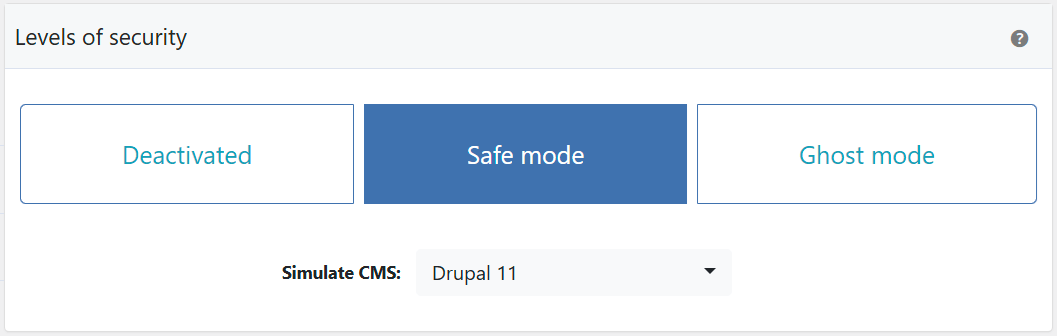
Before you can disable XML-RPC, one of WP Ghost’s security levels must be active.
- Go to WP Ghost > Change Paths > Level of Security.
- Select Safe Mode or Ghost Mode.
- Click Save to apply.
Need help choosing? Check the Safe Mode vs Ghost Mode comparison.
Disable XML-RPC Access
- Go to WP Ghost > Change Paths > API Security.
- Switch on Disable XML-RPC Access.
- Click Save to apply.
That’s it. The xmlrpc.php file now returns a 404 for all requests.


For complete API security, also consider changing the REST API path and disabling the RSD endpoint in the same API Security tab.
Verify with a Security Check
After saving, run a scan to confirm XML-RPC is blocked.
- Go to WP Ghost > Security Check.
- Click Start Scan.
- The plugin verifies that
xmlrpc.phpis no longer accessible. - If everything is working, the security task is marked complete.
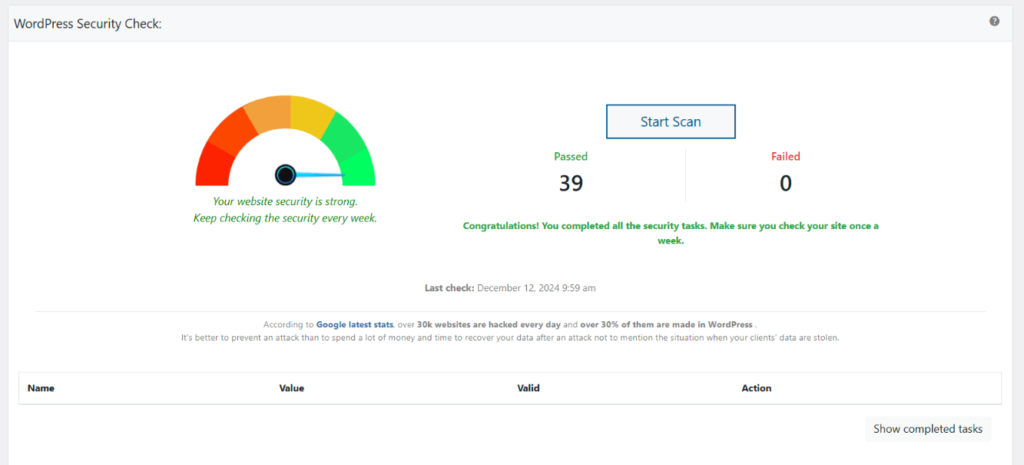
Quick manual check: open a private browser window and visit yourdomain.com/xmlrpc.php. If you see a 404 instead of the “XML-RPC server accepts POST requests only” message, the protection is active. For everything the scanner checks, see the Security Check tutorial.
What Happens After You Disable XML-RPC
Disable it and the effects are immediate:
Brute force amplification attacks stop completely. The system.multicall method is no longer accessible. Attackers can’t bundle password guesses into single requests. Every amplified brute force tool targeting your site fails instantly.
DDoS pingback abuse ends. Your site can no longer be used as a node in pingback-based DDoS amplification attacks. The pingback.ping method returns nothing.
CMS detection through xmlrpc.php fails. Scanners that check for a responsive xmlrpc.php file get a 404 instead of the tell-tale “XML-RPC server accepts POST requests only” response. One more WordPress fingerprint eliminated.
Server resources are freed up. XML-RPC attacks consume CPU and database resources even when they fail. Each authentication attempt triggers a database query. With system.multicall sending hundreds of attempts per request, this adds up to significant server load. Disabling XML-RPC eliminates this entirely, especially on shared hosting where resources are limited.
Your normal WordPress functions are unaffected. The REST API handles everything XML-RPC used to do. The block editor, admin dashboard, plugin updates, theme customization, and all admin functions work through the REST API, not XML-RPC. Visitors see no change at all.
Plugin Compatibility: Jetpack and Others
A small number of plugins still rely on XML-RPC for certain features. The most notable is Jetpack, which uses XML-RPC for some of its communication with WordPress.com servers. If you use Jetpack and need to keep XML-RPC accessible to its servers while blocking everyone else, you can add Jetpack’s IP ranges to your .htaccess file.
Add the following at the beginning of your .htaccess file:
<Files xmlrpc.php>
Order deny,allow
Deny from all
Allow from 127.0.0.1
Allow from *.wordpress.com
Allow from 192.0.64.0/18
Allow from 185.64.140.0/22
Allow from 2a04:fa80::/29
Allow from 76.74.255.0/22
Allow from 192.0.65.0/22
Allow from 192.0.80.0/22
Allow from 192.0.96.0/22
Allow from 192.0.123.0/22
Satisfy All
ErrorDocument 404 /
</Files>
This blocks all access to xmlrpc.php except from Jetpack’s servers and localhost. If you don’t use Jetpack, you don’t need this – just disable XML-RPC entirely through WP Ghost.
Other plugins that may use XML-RPC include older versions of the WordPress mobile app, certain remote publishing tools, and some multisite management dashboards. If something breaks after disabling XML-RPC, test by re-enabling it temporarily to confirm the cause. In most cases, the plugin has an alternative method that doesn’t require XML-RPC.
Troubleshooting
JetPack Plugin Analytics not Working with Disabled XML-RPC Access
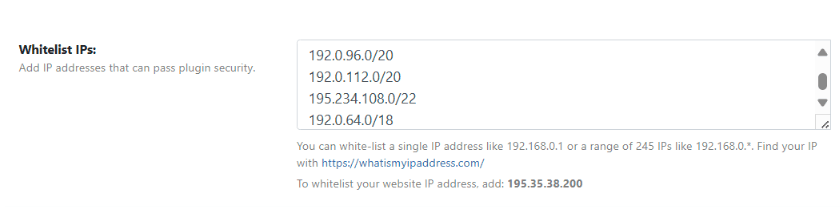
JetPack requires XML-RPC access to communicate with WordPress.com for analytics, stats, and connection features. If you’ve disabled XML-RPC in WP Ghost, JetPack loses this connection and shows errors like “Error connecting to WordPress.com” or “Stats not available.” The best fix is to whitelist JetPack’s IP addresses so it can use XML-RPC while keeping it blocked for everyone else.
Whitelist JetPack’s IP addresses (recommended)
Instead of fully re-enabling XML-RPC, whitelist JetPack’s server IPs so only JetPack can access XML-RPC while all other requests remain blocked. Go to WP Ghost > Firewall > Whitelist and add JetPack’s IP ranges. For the current IP addresses, check JetPack’s developer documentation.
Alternative: Re-enable XML-RPC access
If whitelisting IPs doesn’t resolve the issue (or if JetPack’s IPs change frequently), you can re-enable XML-RPC access entirely. Go to WP Ghost > Change Paths > API Security and switch off Disable XML-RPC access. Save the settings. This allows all XML-RPC requests, so it provides less security than the IP whitelist approach. WP Ghost’s firewall and brute force protection still apply to XML-RPC requests.
Test the JetPack connection
After applying either fix, go to JetPack > Dashboard and check the connection status. If it shows disconnected, click Reconnect. Verify that analytics data starts updating (this may take a few minutes for the first data to appear).
If you’ve lost access to the admin dashboard, see the emergency disable guide.
If you’ve lost access or something broke, check the emergency disable guide, use the rollback settings, or add a constant in wp-config.php to disable WP Ghost temporarily.
Frequently Asked Questions
What is system.multicall and why is it dangerous?
system.multicall is an XML-RPC method that bundles multiple calls into a single HTTP request. Attackers exploit it to send hundreds of password guesses in one request – up to 1,999 per call in known exploit tools. This means one HTTP request can test nearly 2,000 passwords. Standard login protections (rate limiting, CAPTCHA, failed login tracking) see it as one request, not 2,000. That’s why it’s called brute force amplification, and it’s the primary reason XML-RPC is dangerous.
Do I need XML-RPC for anything?
Almost certainly not. The REST API has replaced XML-RPC for every modern use case: remote publishing, mobile apps, third-party integrations, and admin automation. The only notable exception is Jetpack, which uses XML-RPC for some features. If you use Jetpack, either whitelist its IP ranges (see the compatibility section above) or check if Jetpack’s newer versions have migrated to the REST API for your specific features.
What’s the difference between XML-RPC and the REST API?
Both allow remote communication with WordPress, but they’re different systems. XML-RPC uses a single file (xmlrpc.php) with XML-encoded requests. It’s the legacy protocol with minimal security controls. The REST API uses URL-based endpoints (/wp-json/) with JSON-encoded data and supports proper authentication, permissions, and namespacing. For complete API security, secure the REST API as well.
What is pingback DDoS and how does disabling XML-RPC stop it?
WordPress’s pingback feature notifies other sites when you link to their content. Attackers abuse this by sending fake pingback requests to thousands of WordPress sites, all pointing to a single target URL. Each site then makes a request to the target, creating a distributed denial-of-service attack. Your site becomes an involuntary attacker. Disabling XML-RPC removes the pingback.ping method entirely, so your site can’t be weaponized this way.
Does this affect WooCommerce?
No. WooCommerce uses the REST API (/wp-json/wc/v3/), not XML-RPC. Disabling XML-RPC has zero impact on WooCommerce functionality. Cart, checkout, product pages, and all customer-facing features continue working normally. WP Ghost is fully compatible with WooCommerce.
Will the WordPress mobile app still work?
The current WordPress mobile app uses the REST API for most functionality. Older versions relied on XML-RPC. If you use the WordPress app, update it to the latest version before disabling XML-RPC. The modern app works fine without XML-RPC.
Does WP Ghost delete the xmlrpc.php file?
No. WP Ghost never modifies, moves, or deletes any file. The xmlrpc.php file stays on your server. WP Ghost blocks access to it through URL rewrite rules so all requests return a 404. Deactivating WP Ghost restores access to xmlrpc.php instantly.
Related Tutorials
Complete your WordPress API security:
- Change the REST API Path – Secure the modern WordPress API and disable the RSD endpoint.
- Change the admin-ajax.php Path – Protect the other major WordPress API endpoint.
- Brute Force Attack Protection – Add CAPTCHA and rate limiting to the login form.
- Two-Factor Authentication (2FA) – Make stolen credentials useless even if brute force succeeds.
- Firewall Security (7G/8G) – Block injection attacks at the server level.
- Hide from WordPress Theme Detectors – Remove all CMS detection signals.