
- What Is the Lost Password Path in WordPress?
- Why You Need to Secure the Lost Password Path
- How to Change the Lost Password Path with WP Ghost
- What Happens After You Change the Lost Password Path
- Troubleshooting
- Frequently Asked Questions
- Why should I change the lost password path if I’ve already hidden wp-login?
- Can users still reset their passwords after I change this path?
- Does this affect WooCommerce’s password reset functionality?
- How do bots use the lost password page to send spam emails?
- Does WP Ghost modify WordPress core files to change this path?
- Will this work with membership plugins that use the WordPress password reset form?
- Does changing the lost password path affect SEO?
- Related Tutorials
The WordPress password reset page is one of the most overlooked attack vectors on any site. Bots and attackers use it to flood inboxes with unauthorized reset emails, probe for valid usernames, and in some cases, hijack accounts entirely. Changing this path with WP Ghost takes under a minute and eliminates this attack surface.
What Is the Lost Password Path in WordPress?

The lost password path is the URL that WordPress uses to handle password reset requests. When a user forgets their password and needs to regain access, they visit this page, enter their username or email address, and WordPress sends a password reset link to their registered email.
By default, every WordPress site uses the same predictable URL for this page: https://yourdomain.com/wp-login.php?action=lostpassword
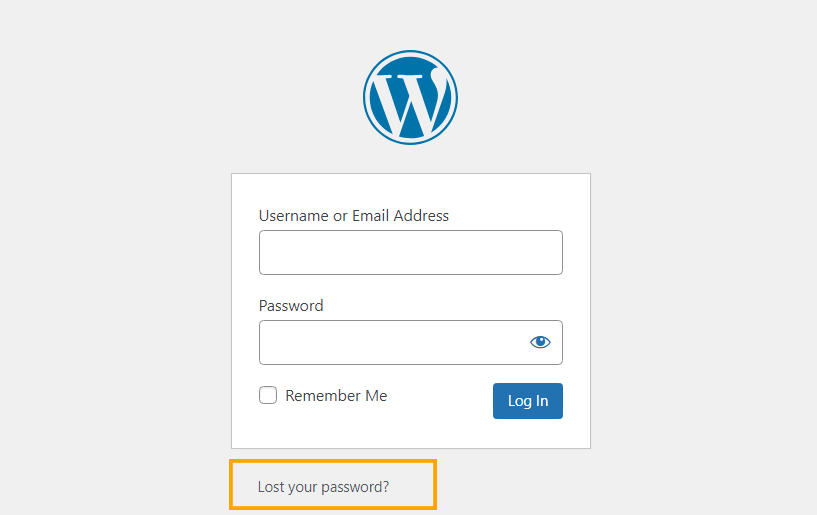
This path is a sub-function of wp-login.php, the same file that handles login, registration, and account activation. When a user submits their email on the lost password page, WordPress generates a unique reset token, stores it in the database, and emails a one-time reset link. The user clicks that link, creates a new password, and regains access.
The problem is that every single WordPress installation uses the exact same URL structure for this process. Since WordPress powers over 43% of all websites (W3Techs), bots don’t need to guess where your password reset form lives. They already know.
Why You Need to Secure the Lost Password Path
Here’s why securing it matters for your hack prevention strategy:
The lost password page might seem harmless compared to the main login form, but attackers exploit it in several specific ways that can compromise your site and your users.
Bots use it to confirm which usernames exist on your site. When a bot submits a username to the lost password form, WordPress responds differently depending on whether the account exists. This gives attackers a confirmed list of valid usernames they can then target with brute force attacks on the login page. This is called username enumeration, and the lost password form is one of the easiest places to do it.
It generates spam password reset emails. Bots can repeatedly hit the lost password URL with known email addresses, flooding your users’ inboxes with unwanted password reset emails. This is annoying for users, damages trust in your site, and can get your email server flagged as spam if it happens at scale.
Password reset tokens can be intercepted. In 2025, a critical vulnerability (CVE-2025-11833) was discovered in the Post SMTP plugin, which affected over 400,000 WordPress sites. One plugin. One flaw. 400,000 sites exposed. Attackers could read password reset emails from the plugin’s logs and use the reset tokens to take over administrator accounts. A separate vulnerability (CVE-2025-15030) in the User Profile Builder plugin allowed unauthenticated attackers to reset any user’s password directly. These aren’t theoretical risks; they’re documented exploits that were actively used in the wild.
It consumes server resources during automated attacks. Every password reset request triggers a database lookup, token generation, and email send. When bots hit this endpoint thousands of times, it drains your server resources the same way brute force login attacks do.
Changing the lost password path removes this default target entirely. When bots can’t find the password reset form, they can’t enumerate usernames, they can’t trigger spam emails, and they can’t exploit reset token vulnerabilities. Combined with hiding wp-admin, hiding the login path, and brute force protection, you’re shutting down every major bot entry point on your site.
How to Change the Lost Password Path with WP Ghost
WP Ghost replaces the default wp-login.php?action=lostpassword URL with a custom path that only you know. No code changes, no .htaccess editing. Everything is handled through rewrite rules, so your WordPress files stay untouched.
Activate Safe Mode or Ghost Mode
Before you can change any paths, one of WP Ghost’s security levels must be active. This enables all path-changing features across the plugin.
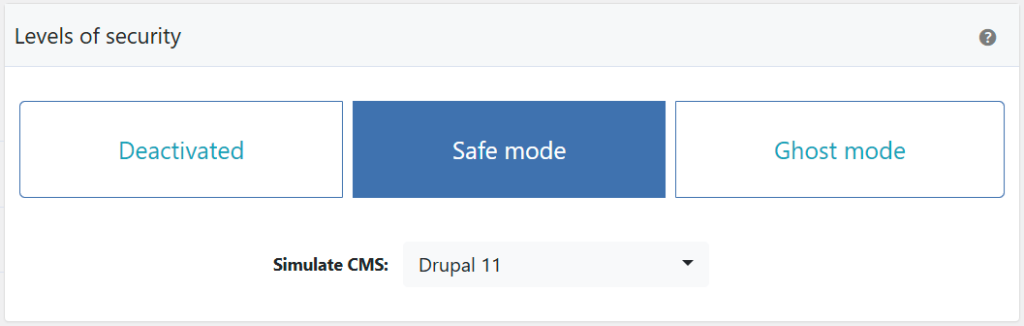
- Go to WP Ghost > Change Paths > Level of Security.
- Select Safe Mode or Ghost Mode. Safe Mode applies essential path changes. Ghost Mode adds advanced path security for maximum protection.
- Click Save to apply.
Not sure which mode to pick? Check the Safe Mode vs Ghost Mode comparison.
Change the Lost Password Path
Once a security mode is active, you can replace the default lost password URL with a custom one.
- Go to WP Ghost > Change Paths > Login Security.
- Find the Custom Lost Password Path field. You’ll see a predefined custom name already filled in.
- Enter a different name for the lost password path, or keep the predefined one. Choose something unique that bots won’t guess.
- Click Save to apply.
Important: Avoid obvious names like “reset-password”, “forgot-password”, or “lostpassword” for your custom path. These are common variations that bots will try. Use something unique that’s not related to password recovery.

Good to know: WP Ghost doesn’t physically move or rename any files. It uses rewrite rules to create the new path virtually. Your WordPress installation stays completely untouched, and deactivating WP Ghost restores all defaults instantly.
Verify with a Security Check
After saving, run a quick security scan to confirm the lost password path is properly changed and the default URL is no longer accessible.
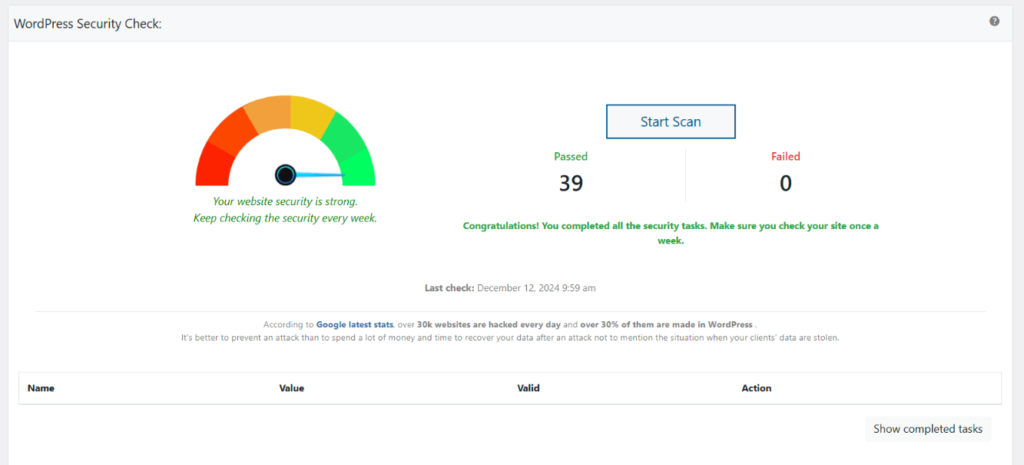
- Go to WP Ghost > Security Check.
- Click Start Scan to initiate the check.
- The plugin will verify that the lost password path has been successfully changed.
- If everything is working, the security task will be marked as complete.
Make it a habit to run this scan after every path change and after plugin updates. For everything the scanner checks, see the Security Check tutorial.
What Happens After You Change the Lost Password Path
Once you save your new settings, here’s what changes:
The new lost password URL is active immediately. Users who need to reset their password will now use the custom path you configured. The “Lost your password?” link on your login page updates automatically to point to the new URL.
The default wp-login.php?action=lostpassword stops working. If you’ve also hidden the wp-login path, bots hitting the old password reset URL will get a 404 error. Even if you haven’t hidden wp-login entirely, the ?action=lostpassword parameter will be mapped to your new custom path.
Password reset emails continue working normally. WordPress still generates and sends password reset emails the same way. The only difference is the URL path that leads to the reset form. The reset tokens, email delivery, and password change process all work exactly as before.
Your site’s front end is completely unaffected. This change only applies to the admin-side password reset URL. Your public pages, posts, SEO rankings, and sitemaps stay exactly the same.
Troubleshooting
Changing the lost password path is usually smooth, but here are common issues and how to resolve them:
Users Can't Reset the Password After Changing the Lost Password Path
If users see a 404 error or get redirected when trying to reset their password after you changed the lost password path in WP Ghost, the custom path isn’t resolving correctly or cached pages still point to the old path.
Clear all caches
The login page is often cached with the old lost password URL. Clear your WordPress cache plugin, CDN cache, and browser cache. Then visit the login page in an incognito window and check that the “Lost your password?” link points to your custom path, not the default.
Run the Frontend Test
Go to WP Ghost > Change Paths and click the Frontend Test button. If the test fails for the lost password path, your server’s rewrite rules aren’t handling it. Follow the configuration instructions shown for your server type.

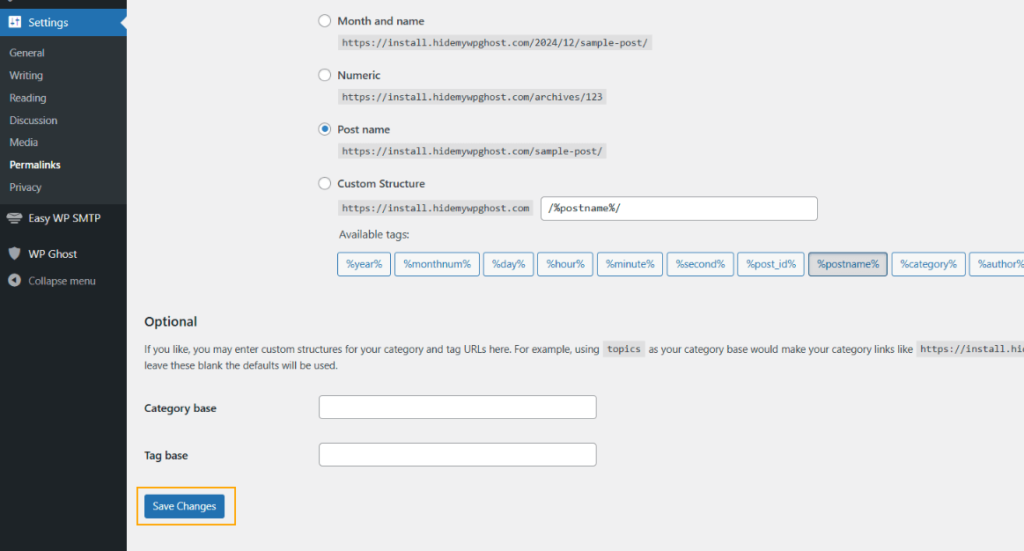
Flush permalink settings
Go to Settings > Permalinks and click Save Changes without modifying anything. This regenerates WordPress’s rewrite rules, which can fix path routing issues.
Check for typos in the custom path
Go to WP Ghost > Change Paths > Login Security and review the custom lost password path for typos, spaces, or special characters. Test the path directly in your browser: yourdomain.com/your-custom-lost-password-path. You should see the password reset form, not a 404.
Revert to the default path
If the issue persists, go to WP Ghost > Change Paths > Login Security, clear the Custom Lost Password Path field, and save. This restores the default WordPress password reset path. If reset works again with the default path, the issue is server rewrite rules not handling the custom path.

Check for login plugin conflicts
Plugins that customize the login page or password reset flow (custom login plugins, membership plugins, security plugins with their own login features) can override WP Ghost’s custom path. Temporarily deactivate login-related plugins and test the password reset. If it works, the conflicting plugin is overriding the lost password URL.
If you’ve lost access to the admin dashboard, see the emergency disable guide.
If you’ve lost access to your site entirely, check the emergency disable guide to restore all default paths. You can also use rollback settings or add a constant in wp-config.php to disable WP Ghost temporarily.
Frequently Asked Questions
Why should I change the lost password path if I’ve already hidden wp-login?
Because the lost password form can be accessed through other means, not just the main login page. Some plugins, themes, and email links reference the password reset URL directly. By changing the path itself, you ensure that no route, whether direct or through a redirect, leads bots to the default reset form. It’s an additional layer that closes a gap many site owners overlook.
Can users still reset their passwords after I change this path?
Yes. The password reset process works exactly the same way. The only thing that changes is the URL. The “Lost your password?” link on your login page automatically updates to point to the new custom path. Users click it, enter their email, and receive a reset link just like before.
Does this affect WooCommerce’s password reset functionality?
WooCommerce uses its own “My Account” page for customer password resets, which is separate from the WordPress wp-login.php?action=lostpassword path. Changing the WordPress lost password path with WP Ghost does not interfere with WooCommerce’s built-in reset process. Both continue to work independently. WP Ghost is fully compatible with WooCommerce.
How do bots use the lost password page to send spam emails?
Bots submit usernames or email addresses to the default wp-login.php?action=lostpassword form in rapid succession. Each submission triggers WordPress to send a password reset email. If bots know (or guess) valid email addresses on your site, they can flood those inboxes with reset emails your users never requested. Changing the path stops bots from reaching the form in the first place.
Does WP Ghost modify WordPress core files to change this path?
No. WP Ghost never touches, moves, or renames any WordPress file. All path changes are handled through URL rewrite rules and WordPress filters. If you deactivate WP Ghost, the default wp-login.php?action=lostpassword path is restored instantly.
Will this work with membership plugins that use the WordPress password reset form?
Most membership plugins that hook into the default WordPress password reset process will continue working with the new custom path. WP Ghost uses rewrite rules that redirect the old path to the new one for authenticated processes. If a specific membership plugin hardcodes the wp-login.php?action=lostpassword URL, you may need to update that reference in the plugin’s settings. Check the compatibility plugins list for known integrations.
Does changing the lost password path affect SEO?
No. The password reset page is an admin-side URL that search engines never crawl or index. Changing it has zero impact on your public pages, rankings, sitemaps, or any front-end content.
Related Tutorials
Continue securing your WordPress login system with these related guides:
- Change and Hide the Login Path – Secure the main wp-login.php page alongside the password reset path.
- Change the Register Path – Prevent spam signups by hiding the registration form.
- Change the Activation Path – Secure the user activation endpoint.
- Brute Force Attack Protection – Add CAPTCHA, rate limiting, and lockout rules to all login forms.
- Two-Factor Authentication (2FA) – Add an extra authentication layer that makes stolen passwords useless.
- Email Notifications – Get alerted when suspicious password reset activity occurs on your site.