
To hide your WordPress site from the public while you build it, combine four layers: a maintenance mode or coming-soon plugin to block visitors from seeing the unfinished site, the built-in Discourage Search Engines setting to prevent indexing, WP Ghost to hide WordPress paths and protect the login, and IP whitelisting so only your team can reach the backend. Together these steps keep the site invisible to visitors, search engines, and hacker bots during development.
Why Hiding a WordPress Site During Development Matters
A half-built WordPress site is a prime target. Default usernames, test passwords, missing SSL, and theme demos full of known patterns make development sites easy for bots to spot and exploit. On top of that, if search engines index a draft version of your pages, the wrong URLs and thin content can stick around for weeks after launch. Hiding the site properly solves both problems at once: visitors see a placeholder, search engines skip the draft, and bots cannot even find WordPress on the domain.
Default WordPress vs a Properly Hidden Dev Site
| Exposure | Default WordPress | Hidden Dev Site |
|---|---|---|
| Visitors see unfinished pages | Yes | No, placeholder shown |
| Google can index the site | Yes | No, noindex active |
| wp-login.php exposed to bots | Yes | No, custom hidden path |
| WordPress visible to detectors | Yes | No, CMS fingerprints hidden |
| Admin accessible from any IP | Yes | No, team IPs only |
How to Hide a WordPress Site from the Public
Step 1. Install a Maintenance Mode or Coming Soon Plugin
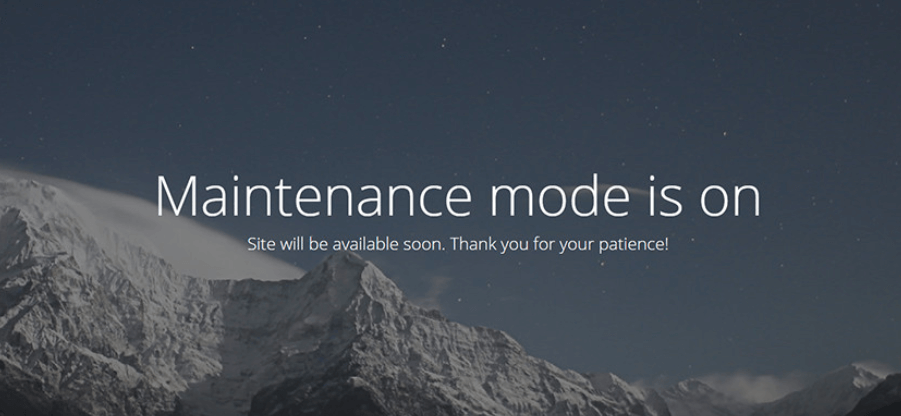
Install a maintenance or coming-soon plugin from the WordPress repository (WP Maintenance Mode and CMP Coming Soon are both compatible with WP Ghost). Activate it so any non-logged-in visitor sees a placeholder page while you work on the real site. This is the fastest way to hide unfinished content, and many of these plugins let you collect emails so you can notify subscribers the day you launch.
Step 2. Enable Noindex in WordPress Reading Settings
Open your dashboard and go to Settings > Reading. Check Discourage search engines from indexing this site and save. WordPress will add a noindex meta tag to every page and update robots.txt to ask crawlers to stay away. Remember to uncheck this option on launch day, otherwise you will block your live site from Google too.

Step 3. Install WP Ghost to Hide WordPress Fingerprints
Maintenance mode hides the content, but bots do not care about your placeholder page. They scan for WordPress paths like /wp-admin, /wp-login.php, /wp-content/plugins/, and /wp-includes/ regardless of what is on the homepage. Install WP Ghost and activate Safe Mode or Ghost Mode under WP Ghost > Change Paths > Level of Security. This hides the default WordPress paths, renames the login URL, and strips WordPress identifiers from the HTML source so scanners and theme detectors cannot confirm the CMS. For a step-by-step setup, see the 3-minute Safe Mode setup.
Step 4. Whitelist Your Team’s IP Addresses
If your team works from fixed IPs (office, VPN, or static home connections), whitelist them so security rules never lock anyone out. Go to WP Ghost > Firewall > Whitelist, add each IP, and pick a whitelist level. For developers who need full access without restrictions, “Allow Everything” gives the smoothest experience. For details on all three whitelist levels and path-based whitelisting, see the Whitelist IPs and Paths guide.
Step 5. Turn On Brute Force Protection and 2FA
Even during development, the login form is exposed the moment the site goes online. Enable brute force protection at WP Ghost > Brute Force with Math reCAPTCHA or Google reCAPTCHA, and turn on WP Ghost > 2FA Login so each login needs a code, email, or passkey. Full walkthroughs are in the Brute Force Protection and Two-Factor Authentication tutorials.
Step 6. Keep Regular Backups
Development means experiments, plugin installs, and theme changes that sometimes break things. Use a backup plugin like UpdraftPlus or BackupGuard to snapshot the site daily. If a plugin update breaks the layout or a new configuration misfires, you can restore the last working version in minutes. Backups are a separate layer from WP Ghost, which focuses on prevention rather than recovery, but the two work well together.
Why This Combination Works
Maintenance mode hides the visual content. Noindex keeps search engines out. WP Ghost hides the WordPress platform itself, so bots scanning for /wp-login.php, /wp-admin, or known theme and plugin paths find nothing to exploit. With 115+ free features and 150+ premium features, WP Ghost covers the hack-prevention side, while the maintenance plugin and backup tools cover visibility and recovery. Each layer does a different job, and together they give a private site that is also bot-resistant.
Frequently Asked Questions
Is the Discourage Search Engines setting enough on its own?
No. It only adds a noindex tag and asks crawlers to stay away. Well-behaved search engines respect it, but hacker bots and scrapers ignore noindex entirely. You still need a maintenance plugin for visitors and WP Ghost for bot protection.
Can I preview the real site while maintenance mode is on?
Yes. Most maintenance plugins show the placeholder to logged-out visitors only, so you and your team see the real site while anyone else sees the “coming soon” page. Combined with WP Ghost’s whitelist, this gives the cleanest development workflow.
Should I block entire countries during development?
If your attack logs show traffic from specific regions, yes. WP Ghost Premium includes Geo Security and country blocking, which rejects requests before they reach WordPress. For a site that is not public yet, blocking high-risk countries cuts bot load and saves server resources.
What do I unturn off before going live?
Uncheck Discourage search engines from indexing this site in Settings > Reading, deactivate or disable the maintenance plugin, and double-check your sitemap is reachable. Keep WP Ghost, brute force protection, and 2FA active, they are just as important after launch as before.
Will visitors see errors if I change WordPress paths during development?
No. WP Ghost uses server rewrite rules and WordPress filters, so the front end keeps working even after paths are hidden. If you run into an issue, the emergency disable guide shows how to roll back in under a minute.
Does WP Ghost modify WordPress core files?
No. WP Ghost never touches, moves, or renames any file or folder on your server. All path changes use server rewrite rules and WordPress filters. Deactivating WP Ghost restores all original paths instantly, which means you can add it to a development site without worrying about breaking anything permanently.