
Yes, WP Ghost can hide both the plugins and the theme your WordPress site uses. Plugin and theme directory names appear in every CSS, JavaScript, and image URL on your page source, and vulnerability scanners read them to build an exploit plan. WP Ghost replaces plugin and theme directory names with random codes, renames the /plugins/ and /themes/ paths, blocks the original URLs with 404 responses, and renames style.css so detectors cannot read its header. After setup, scanners cannot enumerate your plugin stack or identify your theme.
Why Plugin and Theme Names Are a Security Risk
Plugins cause 96% of WordPress vulnerabilities. Every plugin you install creates a directory inside /wp-content/plugins/ with its exact name, and that name leaks into every asset URL your site loads. If you use Contact Form 7, your source shows /wp-content/plugins/contact-form-7/. If you use Elementor, it shows /wp-content/plugins/elementor/. WPScan, Wappalyzer, and similar scanners read those directory names, cross-reference them against public vulnerability databases, and launch the matching exploit within seconds. The same logic applies to your theme: the /wp-content/themes/astra/ path tells any bot exactly which theme and version you are running.
How WP Ghost Hides Plugins and Themes
WP Ghost assigns custom names and paths to your plugins and themes, effectively masking their real identities. Scanners hit the default locations and get 404 responses; the actual assets load through the new paths, which contain no recognizable plugin or theme names.
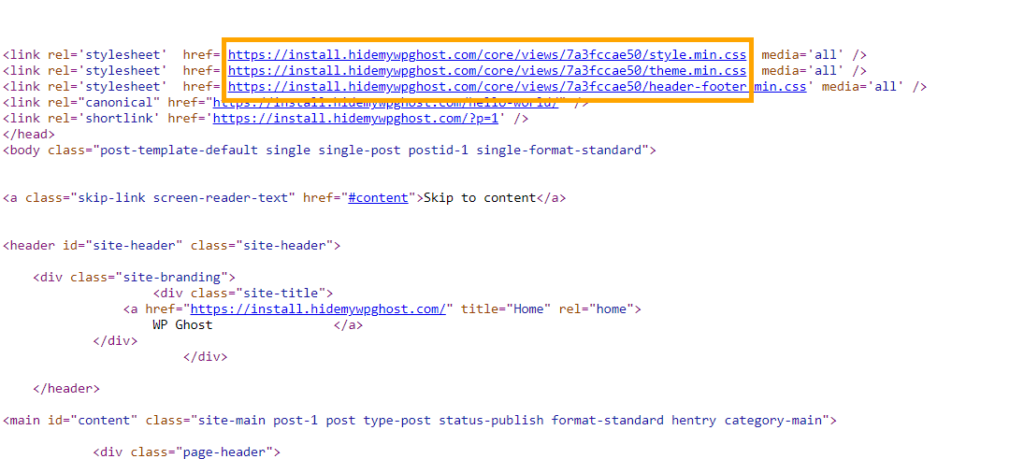
Default WordPress vs WP Ghost: What Scanners See
| Signal in Page Source | Default WordPress | With WP Ghost |
|---|---|---|
| Plugin directory names | /wp-content/plugins/elementor/ | /assets/p3x9k/ |
| Theme directory name | /wp-content/themes/astra/ | /layouts/t7k2m/ |
| Deactivated plugins exposed | Yes, still browsable | Renamed or blocked |
| /wp-content/plugins/ URL | Responds normally | Returns 404 to visitors |
| style.css readable | Yes, full theme header exposed | Renamed, header unreachable |
| Vulnerability scanner result | Plugins and theme enumerated | Zero detections |
How to Hide Plugins and Themes with WP Ghost
Step 1. Activate Safe Mode or Ghost Mode
Open WP Ghost > Change Paths > Level of Security and select Safe Mode for a balanced setup or Ghost Mode for maximum hiding. This sets the baseline that plugin and theme protection builds on. For a walkthrough, see the 3-minute Safe Mode setup.
Step 2. Change the Plugins Path and Hide Plugin Names
Go to WP Ghost > Change Paths > Plugins Security. Enter a custom name in the Custom Plugins Path field to replace the /plugins/ keyword. Switch on Hide Plugin Names to replace each plugin’s directory with a random code. Switch on Hide All the Plugins to rename deactivated plugins too, since deactivated plugins are still exploitable. Finally, switch on Hide WordPress Old Plugins Path to return 404 on requests to the original URL. Full details are in the Change Plugins Path tutorial.
Step 3. Change the Themes Path and Hide Theme Names
Go to WP Ghost > Change Paths > Themes Security. Enter a custom name in the Custom Themes Path field, switch on Hide Theme Names and Hide All the Themes, then switch on Hide WordPress Old Themes Path. Set a Custom Theme Style Name to rename style.css, which blocks detectors that read the theme header. Full setup is in the Change Themes Path tutorial.
Step 4. Hide WordPress Common Paths
Plugins and themes live inside /wp-content/, so hiding that parent directory adds another layer. Go to WP Ghost > Change Paths > WP Core Security and switch on Hide WordPress Common Paths. This returns 404 for requests to the default WordPress directories. Click Save.
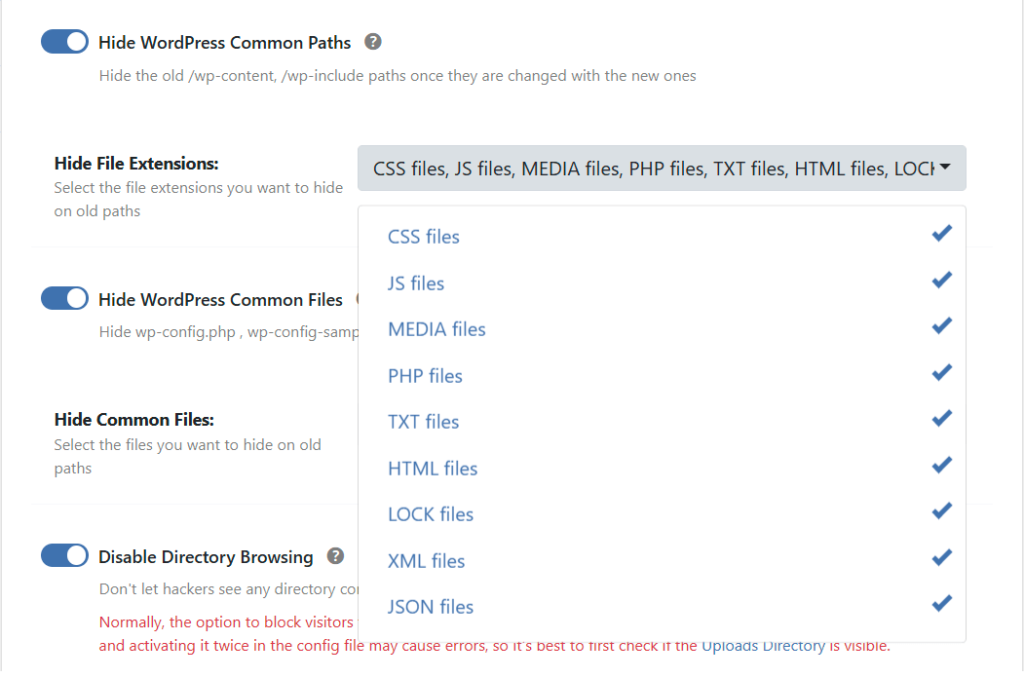
Full options are in the Hide WordPress Common Paths and Files guide.
Step 5. Hide Plugin Class Names (Advanced)
Some plugins leak their identity through HTML class names, not just file paths. Classes like woocommerce-product-gallery or elementor-widget-container appear throughout your markup and betray the plugin even when paths are hidden. For sites where maximum concealment matters, use Text Mapping for WooCommerce and Elementor to replace those class names in HTML, CSS, and JavaScript output.
Step 6. Verify with the Security Check
Go to WP Ghost > Security Check and click Start Scan. The plugin runs through its checklist and flags anything still leaking plugin or theme names. You can also verify manually: open the site in an incognito window, view source, and search for a known plugin name like “elementor” or “woocommerce”. If nothing appears, the configuration is working. See the Website Security Check guide for the full verification process.
Why Hiding Plugins and Themes Matters
Knowing which plugins and themes you run tells attackers more than which exploits to try. It reveals your site’s purpose, your form handling, your security setup, and your page builder. A site running WooCommerce and LearnDash is an online course store. A site running Contact Form 7 and Gravity Forms has specific form endpoints to target. That intelligence shapes every subsequent attack decision. Hide the plugin and theme names, and automated attackers are working blind, which is exactly the hack prevention outcome WP Ghost is designed to deliver. Plugin and theme hiding is part of the 115+ free features and 150+ premium features that remove WordPress fingerprints across your entire site.
Frequently Asked Questions
Will hiding plugins break their functionality?
No. WP Ghost creates virtual paths through server rewrite rules. Plugin files stay in /wp-content/plugins/ where WordPress expects them, and the plugin loads through the new URL. Contact forms submit, page builders render, WooCommerce carts update, SEO plugins generate sitemaps, everything works normally.
Does this work with WooCommerce and Elementor?
Yes. Path and name hiding is fully compatible with WooCommerce, Elementor, Divi, Gutenberg, and every major plugin. For deeper WooCommerce and Elementor concealment (class names, not just paths), use the Hide Plugins Like WooCommerce and Elementor tutorial.
Why should I hide deactivated plugins?
Because deactivated plugins are still exploitable. Their PHP files remain on the server and are accessible through the default path even when the plugin is not active. If a deactivated plugin has a known vulnerability, attackers can target its files directly. Enabling Hide All the Plugins renames both active and deactivated directories. Even better: delete any plugins you do not actively use.
Does hiding plugins and themes affect SEO?
No. Path changes affect asset URLs only, CSS, JavaScript, and images loaded by plugins and themes. Your public page URLs, posts, sitemaps, and canonical tags stay the same. Search engines do not index or rank based on plugin or theme file paths.
Can I assign custom names instead of random codes?
Yes. The Advanced Options panel in Plugins Security and Themes Security lets you assign specific names to each plugin or theme individually. This is useful for developers who want readable source code, though random codes offer the strongest protection.
Does WP Ghost modify WordPress core files?
No. WP Ghost never touches, moves, or renames any file or folder on your server. Plugin files stay in /wp-content/plugins/ and theme files stay in /wp-content/themes/ exactly where WordPress expects them. All path changes use server rewrite rules and WordPress filters. Deactivating WP Ghost restores all original paths instantly.