
If you cannot log in after activating WP Ghost, you have four built-in recovery options that get you back into your site in under a minute: use your SAFE URL (the unique bypass link generated during setup), append the Safe URL parameter to any page, pause WP Ghost for 5 minutes from the Plugins list, or add a constant to wp-config.php. Every WP Ghost installation includes these safety nets, you never get permanently locked out, even when a plugin conflict breaks the custom login path.
The SAFE URL Is Your First Line of Recovery
When you activate Safe Mode or Ghost Mode for the first time, WP Ghost asks you to run a Frontend Test and a Login Test in a preview popup. This lets you verify the new paths work before they go live permanently.
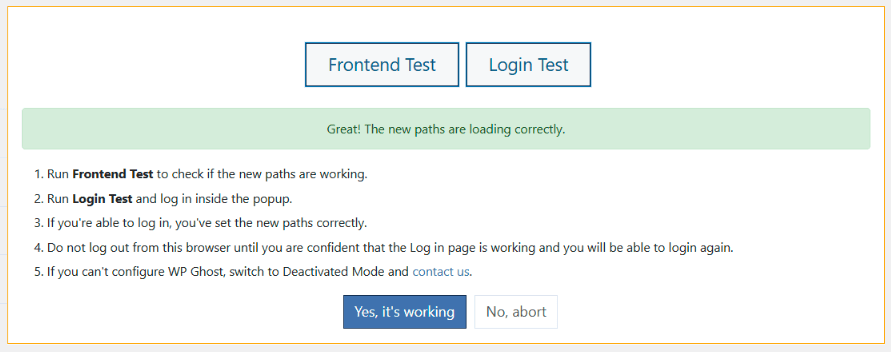
When you click Yes, It’s Working on the Login Test, WP Ghost downloads a text file containing two critical pieces of information: your new login URL and your SAFE URL. Save this file somewhere safe, a password manager, a note on your phone, a bookmark on your main browser. The SAFE URL is also available any time from your WP Ghost Dashboard > Connected Sites.
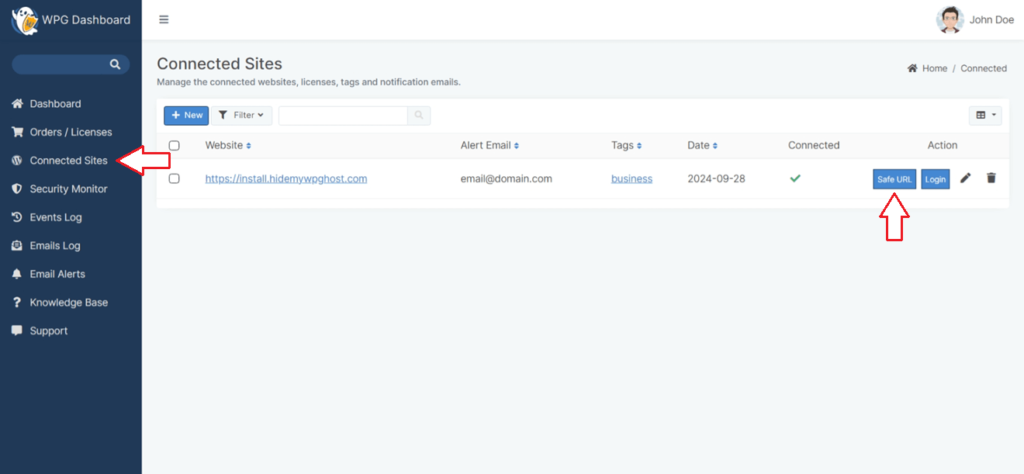
If you ever cannot log in through your custom path (because of a plugin conflict, a theme change, or a cache issue), open the SAFE URL and you will reach the login form with WP Ghost’s path security bypassed for that session. This works even when other plugins are blocking the normal login.
Four Ways to Recover Access
| Recovery Method | When to Use | Admin Access Needed? |
|---|---|---|
| SAFE URL from setup | You saved the URL during Safe/Ghost Mode activation | No |
| Safe URL parameter (?disable=XYZ) | You have the custom parameter from WP Ghost Dashboard | No |
| Pause WP Ghost for 5 minutes | You can still reach the WordPress Plugins page | Yes |
| wp-config.php constant | All other options failed, you have FTP or cPanel access | No |
How to Use Each Recovery Method
Option 1. Open Your SAFE URL
Open the text file you saved during activation, or log in to your WP Ghost Dashboard, go to Connected Sites, and click the site’s SAFE URL. This opens the login page with WP Ghost temporarily bypassed. Log in, fix the conflict, and continue as usual.
Option 2. Use the Safe URL Parameter
Every WP Ghost installation generates a random parameter (for example ?disable=NwznPAYbmUBxZtoE) that bypasses WP Ghost on any page when appended to the URL. Try:
https://yourdomain.com/wp-login.php?disable=YOUR_SAFE_PARAMReplace YOUR_SAFE_PARAM with the value from WP Ghost > Advanced > Rollback Settings. The Safe URL parameter deactivates WP Ghost for that single request only, so the next request reactivates all your security settings automatically.
Option 3. Pause WP Ghost for 5 Minutes
If you can reach the WordPress dashboard but need to troubleshoot a conflict, go to the Plugins page, find WP Ghost, and click Pause 5 Minutes. All security features are disabled for 5 minutes, giving you time to test which other plugin is conflicting, adjust settings, or deactivate a problematic plugin. WP Ghost reactivates automatically after the timer expires.
Option 4. Disable WP Ghost via wp-config.php
If none of the above work (for example, you never saved the SAFE URL and the dashboard is unreachable), add this line to your wp-config.php file via FTP or your hosting file manager, before the line that says /* That's all, stop editing! */:
define( 'HMW_DISABLE', true );Save the file. WP Ghost is now fully disabled and default WordPress paths are restored. Log in through /wp-login.php, remove the constant, and reconfigure WP Ghost from a fresh state. Full walkthrough in the Emergency Disable guide.
How to Avoid Getting Locked Out in the First Place
A few habits eliminate lockout risk almost entirely:
Save the SAFE URL immediately. The download that appears after the Login Test is your safety net. Save it to a password manager or keep the text file in a cloud folder. This is the single most important step.
Bookmark your custom login URL. As soon as WP Ghost shows your new login path, bookmark it in your browser. If you ever forget it, the bookmark is right there.
Test in an incognito window. After activating Safe Mode or Ghost Mode, do not log out from your current session. Open an incognito window first and verify you can log in there. If something is wrong, click No, Abort on the Frontend Test and WP Ghost reverts to the previous working paths automatically.
Customize the Safe URL parameter. The default parameter is randomly generated and unique to your installation, but you should still change it to something unpredictable. Treat it like a password, anyone who knows it can bypass your security for a single request. Set a custom value at WP Ghost > Advanced > Rollback Settings.
Frequently Asked Questions
What if I lost the SAFE URL?
Log in to your WP Ghost Dashboard at account.wpghost.com, go to Connected Sites, and click the site entry. The SAFE URL is listed there for every connected site. If you cannot reach the dashboard either, use the wp-config.php constant method to temporarily disable the plugin.
Is the SAFE URL a security risk?
Only if someone else knows it. The default value is randomly generated and unique to your installation. Customize it to a long, unpredictable string and do not share it. It bypasses WP Ghost’s protections for a single request, so treat it with the same care as a password.
Does the 5-minute pause reactivate automatically?
Yes. After 5 minutes WP Ghost reactivates with all your current settings intact. Click Pause 5 Minutes again if you need more time to troubleshoot.
Will the wp-config.php method delete my WP Ghost settings?
No. The HMW_DISABLE constant just stops the plugin from running. All your settings are preserved in the database. Remove the constant and WP Ghost picks up exactly where it left off.
What if the conflict is with another plugin?
Check the WP Ghost Compatibility Plugins List for known issues. The most common conflicts are with other login-hiding plugins (WPS Hide Login, iThemes Security login path), which should not run alongside WP Ghost. Disable the conflicting plugin, and WP Ghost resumes normal operation.
Can I prevent this from happening on future sites?
Yes. Use Preset Security Options to load a tested configuration, start with the “Safe Mode + Firewall + Compatibility” preset for the lowest conflict risk. Export your working configuration with Backup/Restore and apply it to new sites directly.
Does WP Ghost modify WordPress core files?
No. WP Ghost never touches, moves, or renames any file or folder on your server. Recovery methods (SAFE URL, Safe URL parameter, 5-minute pause, wp-config.php constant) all work through WordPress hooks, the options table, and the plugin’s runtime checks. Core files stay untouched, and every recovery option is reversible within seconds.