
Yes, WP Ghost works with WP Umbrella. Because WP Umbrella connects through your login page and the REST API, you need two small compatibility tweaks: switch off the “Hide login” option in WP Ghost, and set the same custom REST API path in both WP Ghost and WP Umbrella. Once that is done, WP Umbrella can manage your site remotely while WP Ghost keeps your login URL and WordPress paths hidden from bots.
Why WP Umbrella Needs This Configuration
WP Umbrella is a remote WordPress management tool for agencies and freelancers, letting you update plugins, run backups, monitor uptime, and handle security across many sites from one dashboard. The way it connects is through two channels: the standard login (so it can trigger admin actions) and the REST API (so it can send commands and pull status data). WP Ghost, by default, hides both the login page and the REST API to block bot traffic. When both plugins are active without coordination, WP Umbrella cannot reach your site because the endpoints it expects are no longer there. The fix is telling WP Ghost where to leave a door open for WP Umbrella, while keeping the door closed for everyone else.
The Three-Step Setup
Step 1: Switch Off “Hide login”
Go to WP Ghost > Change Paths > Login Security and switch off the Hide “login” option. This does not remove your custom login path, it just keeps the /login alias reachable so WP Umbrella’s connection requests still work. Your custom login URL stays private, and /wp-login.php can still return a 404 through the “Hide wp-login.php” option.

Step 2: Match the REST API Path in Both Plugins
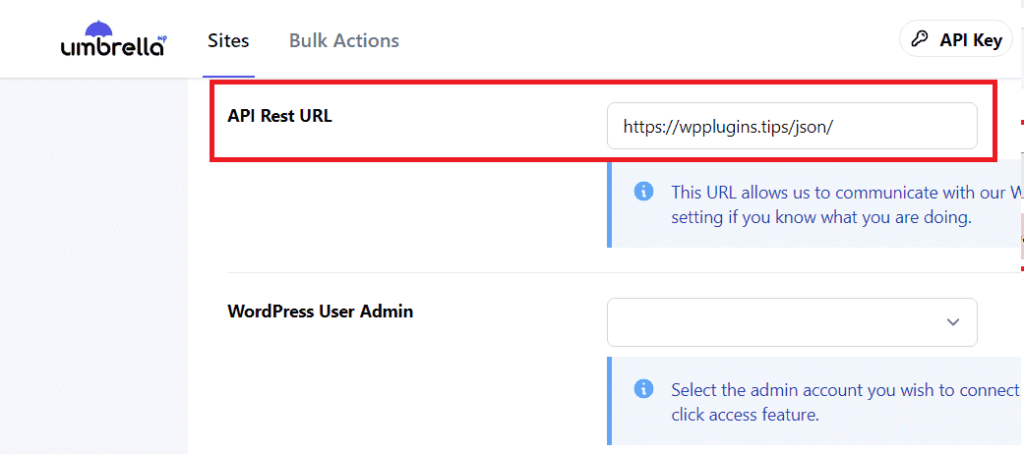
WP Ghost lets you rename the default /wp-json/ REST API path to something custom under WP Ghost > Change Paths > API Security. If you have done that, WP Umbrella needs to know the new path or its requests will hit 404s.

Copy whatever value you set in WP Ghost and paste it into WP Umbrella’s site settings. In your WP Umbrella dashboard at app.wp-umbrella.com, open your site, go to Settings, and update the REST API path to match.
Step 3: Save and Clear Your Cache
Save your WP Ghost settings, save the site settings in WP Umbrella, then clear your WordPress cache (WP Rocket, LiteSpeed, Autoptimize, or whichever plugin you use) and any CDN cache. Cached pages can contain the old REST API path and cause intermittent connection errors until they regenerate. A fresh cache guarantees the new path is served to WP Umbrella immediately.
Default WordPress vs WP Ghost + WP Umbrella
| Endpoint | Default WordPress | WP Ghost + WP Umbrella Configured |
|---|---|---|
| Login page | /wp-login.php (public) | Custom path, /wp-login.php returns 404, /login alias reachable for WP Umbrella |
| REST API | /wp-json/ (public) | Custom path matched on both sides |
| Bot-facing surface | Fully exposed | Hidden from everyone except WP Umbrella |
| WP Umbrella backups, updates, monitoring | Works | Works |
Why This Pairing Makes Sense
If you run WP Umbrella, you are probably managing multiple client sites, and every one of those sites is a potential entry point. Bots scan default WordPress paths automatically. If even one of your managed sites has an outdated plugin with a known exploit and the login page sitting at /wp-login.php, it is a matter of time. WP Ghost handles the first half of that equation by hiding the login, the wp-admin URL, the plugin and theme paths, and the REST API. WP Umbrella handles the second half by keeping everything updated and backed up. Neither plugin replaces the other, they cover different risks. Together they cover both the “stop bots from finding you” side and the “stay patched and recoverable” side of WordPress security.
Troubleshooting
WP Umbrella shows the site as disconnected. Check that you copied the REST API path exactly, including leading or trailing slashes. Also verify that “Hide login” is switched off in WP Ghost. Then clear both the WordPress cache and any CDN cache.
Connection works sometimes but not always. Usually a cache issue. The REST API path inside cached HTML may still point to /wp-json/. Enable Change Paths in Cache Files under WP Ghost > Tweaks, then purge the cache.
Backups or updates fail through WP Umbrella. WP Ghost’s firewall may be flagging WP Umbrella’s IPs as unusual traffic. Add WP Umbrella’s server IPs to WP Ghost > Firewall > Whitelists so the firewall recognizes them as trusted. WP Umbrella publishes its IP list in their documentation.
If you get locked out completely, use the emergency disable method to regain access, then reconfigure from a clean state.
Frequently Asked Questions
Is WP Ghost compatible with WP Umbrella?
Yes, with two small settings on the WP Ghost side: switch off “Hide login” under Change Paths > Login Security, and match the REST API path in both plugins. That is it. Once configured, WP Umbrella connects normally and all its features (updates, backups, uptime monitoring, client reports) work as expected.
Do I have to keep my login page public for WP Umbrella to work?
No. Your custom login URL stays hidden. The “Hide login” option only controls the /login alias that WP Umbrella uses to establish connection. You can still enable “Hide wp-login.php” so the default WordPress URL returns a 404, and your custom path stays known only to you.
Can I change the REST API path and still use WP Umbrella?
Yes, as long as you use the same path in both plugins. Set it in WP Ghost > Change Paths > API Security first, then copy the value into your WP Umbrella site settings. Clear the cache after saving on both sides.
Does WP Umbrella work in Safe Mode and Ghost Mode?
Yes, in both modes. Ghost Mode is more aggressive and hides more paths, but the two compatibility steps (Hide login off + matching REST API path) apply the same way. If you see intermittent issues in Ghost Mode, also whitelist WP Umbrella’s IPs in the firewall.
Does this work with similar tools like ManageWP or MainWP?
Yes. WP Ghost is compatible with all major WordPress management dashboards. For ManageWP specifically, see the dedicated WP Ghost and ManageWP setup guide, which requires setting WP Ghost’s Plugin Loading Hook to “Load As Must Use Plugin” for the best compatibility. MainWP follows the same pattern.
Does WP Ghost modify WordPress core files?
No. WP Ghost uses server-level rewrite rules and WordPress filters. No core files are touched. Deactivating WP Ghost restores every original path and default instantly, which also restores the default WP Umbrella connection if you ever need to roll back.