
Yes, you can remotely disable WP Ghost on any client’s website from your WP Ghost Dashboard, without logging in to the client’s WordPress admin. Open Connected Sites, find the site, set Block Website to Yes, and click Submit. The plugin on the client’s site loses access to your license, path security switches back to WordPress defaults automatically, and your dashboard slot frees up instantly. The client’s WordPress site keeps working normally, and no manual cleanup is needed on the client’s end.
When You Need to Remotely Disable WP Ghost
Agencies and freelancers run into this situation often: a client stops using your services, a project wraps up, or a site changes ownership. You want to revoke WP Ghost access without having to log in to the client’s WordPress, coordinate with the new owner, or ask for admin credentials you no longer have. The WP Ghost Dashboard handles this cleanly from your side, which means you can free up license slots and cut access in one step.
How to Remotely Disable WP Ghost
Step 1. Open the WP Ghost Dashboard
Log in to your WP Ghost Dashboard account with the email address tied to your subscription.
Step 2. Go to Connected Sites
Open the Connected Sites section. You will see a list of every website currently using a slot under your license, with each entry showing the site URL, connection status, and edit option.
Step 3. Block the Site
Find the client’s site in the list, click the edit icon, set Block Website to Yes, and click Submit. That is it, the license is revoked immediately and the slot frees up for another site.
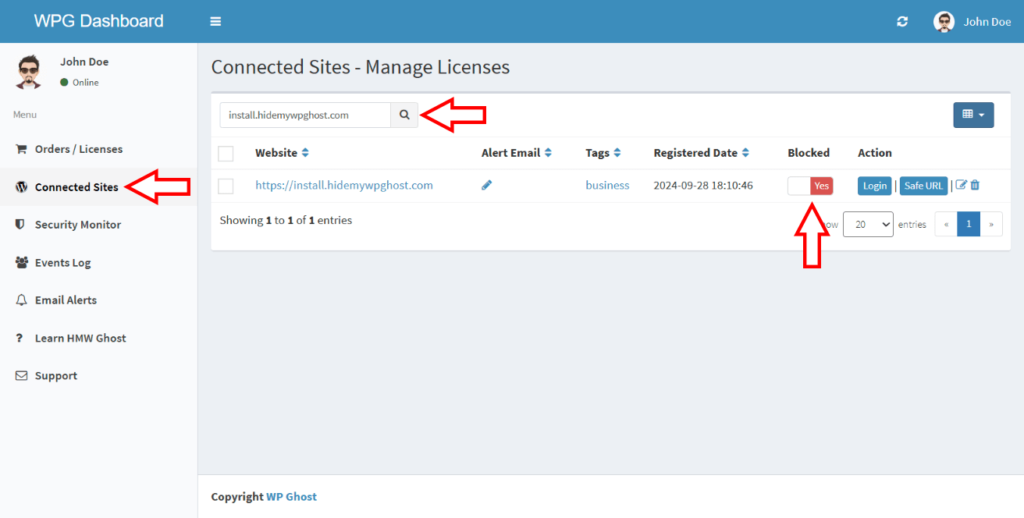
For the full walkthrough with additional screenshots, see Disconnect a Website from WP Ghost Dashboard.
What Happens on the Client’s Site
This is the part most agencies want to understand before blocking a site. The client’s WordPress site does not break. WP Ghost is designed to fail gracefully so a disconnected license never causes errors on the site itself. Specifically:
The client’s WordPress site and settings stay untouched. Posts, pages, users, the front end, the admin, everything keeps working exactly as before. The WP Ghost paths automatically revert to default once someone accesses the plugin settings on the site, so wp-login.php, wp-admin, and all other hidden paths come back to their normal URLs. No login lockout, no broken URLs, no 404 errors on the site itself. The plugin stays installed but loses access to your license, so inside the WP Ghost settings the client sees an activation token prompt asking them to reconnect. Without a valid token (yours or a new one they buy), premium features are unavailable, but free features continue to work.
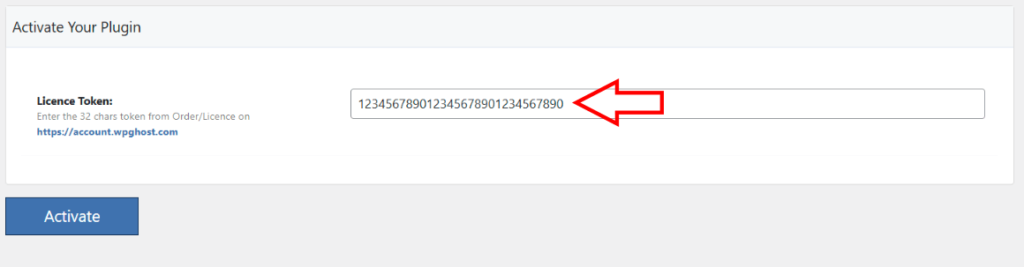
If the client wants to keep using premium features, they need to create their own WP Ghost account and add a valid activation token. Your license stays yours, and your configuration history stays in your dashboard.
Remote Disable vs Full Uninstall
| Action | Where You Do It | Result |
|---|---|---|
| Remote disable (block site) | WP Ghost Dashboard, no WordPress access needed | License revoked, paths revert to default, plugin stays installed |
| Full plugin uninstall | Client’s WordPress admin (Plugins > Deactivate > Delete) | Plugin fully removed, requires WordPress admin access |
| Change activation token | WP Ghost Dashboard | Old token stops working, new token required to reconnect |
For most agency workflows, the remote disable is the right tool. It cuts access instantly without asking you to coordinate with the client or recover credentials.
When to Use the Whitelabel Option
If you deliver WP Ghost to clients under your own brand, the Whitelabel Option changes how the whole flow looks. With Whitelabel enabled, the plugin is branded as your agency’s product, the help links point to your own knowledge base, and clients never see WP Ghost branding or activation token prompts. When you remote-disable a Whitelabel site, the client sees your branded plugin asking them to contact you for reactivation, not a generic WP Ghost reconnect screen.
Frequently Asked Questions
Will remote-disabling WP Ghost break the client’s website?
No. The site continues to function normally. Paths revert to WordPress defaults automatically, so there are no broken URLs, no 404 errors, and no login issues. This is deliberate: WP Ghost is designed so that disconnection never causes downtime or errors on the site.
Does the client need to do anything after I disable their license?
Only if they want to keep using premium features. Otherwise the free version of WP Ghost continues to work on their site without action. If they want premium features back, they create their own WP Ghost account and add a valid activation token.
Can I re-enable the site later if the client comes back?
Yes. Open the Connected Sites list, find the blocked site, set Block Website back to No, and click Submit. The license reactivates on the site. If the dashboard slot is already filled by another site, you will need to either block another site first or upgrade your plan.
What if I just want to move a license to a different site?
Block the old site from your dashboard, then connect the new site using your activation token. The slot transfers instantly. See Can I remove a connected site for the full process.
Do I need to notify the client that I disabled their license?
That is your call. Blocking the site does not send any notification automatically. The client only finds out if they open the WP Ghost settings in their WordPress admin and see the activation token prompt. For professional practice, notify them so they understand why premium features stopped working.
Does WP Ghost modify WordPress core files?
No. WP Ghost never touches, moves, or renames any file or folder on your clients’ servers. When you remote-disable a site, the path security simply stops being applied, and the original WordPress URLs come back automatically. There are no leftover files, no manual cleanup, and no changes to WordPress core.