
You can hide the WordPress theme name using WP Ghost. The plugin replaces your real theme directory name with a random code in the page source, renames the style.css file that theme detectors read, and blocks access to the original /wp-content/themes/ path. After setup, tools like BuiltWith, Wappalyzer, and WhatWPThemeIsThat cannot identify which theme you are using.
Why Your Theme Name Is a Security Risk
Your active theme’s directory name appears in every CSS and JavaScript reference in your page source. A path like /wp-content/themes/astra/style.css tells anyone (and any bot) exactly which theme you are running. Theme detectors read this path, then cross-reference the theme name and version against public vulnerability databases. If your theme version has a known security flaw, the automated exploit follows within seconds.
On top of that, every WordPress theme includes a style.css file with a standardized header that contains the theme name, version number, author URL, and description. This is a complete fingerprint that any scanner can read with a single request. Hiding the theme name means removing all of these signals from your site.
Default WordPress vs WP Ghost: What Theme Detectors See
| Signal | Default WordPress | With WP Ghost |
|---|---|---|
| Theme path in source | /wp-content/themes/astra/ | /layouts/t7k2m/ |
| style.css filename | style.css (readable header) | main.css (no standard header path) |
| /wp-content/themes/ URL | Returns theme files | Returns 404 to non-logged users |
| Inactive themes exposed | Yes, browsable | Hidden with random names |
| Detector result | Theme identified instantly | Unknown or wrong CMS |
How to Hide the Theme Name with WP Ghost
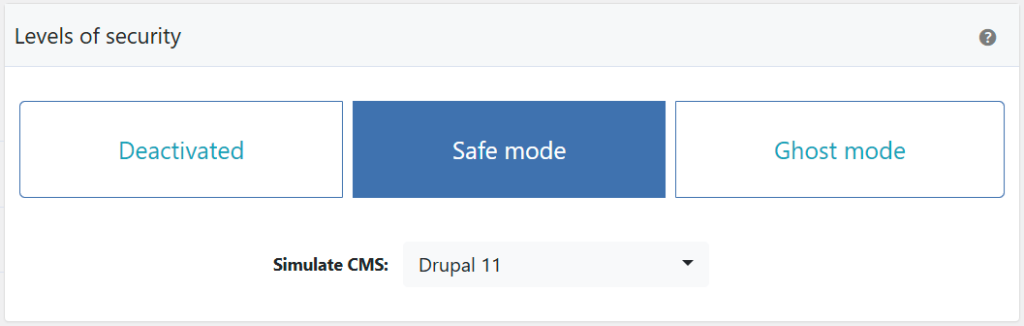
WP Ghost offers six layers of theme protection. For complete theme hiding, enable them all. Start by activating Safe Mode or Ghost Mode at WP Ghost > Change Paths > Level of Security, then configure the theme-specific options.
Change the themes path. Go to WP Ghost > Change Paths > Themes Security. Enter a custom name in the Custom Themes Path field. This replaces the /themes/ keyword in your URLs, so /wp-content/themes/astra/ becomes something like /wp-content/layouts/astra/. This alone breaks every scanner that looks for the /themes/ pattern. Click Save.

Hide theme names. In the same Themes Security section, switch on Hide Theme Names. This replaces your active theme’s directory name with a randomly generated code. Instead of /layouts/astra/, the path becomes /layouts/t7k2m/. No one can identify your theme from the page source. Click Save.
Hide all themes. Switch on Hide All the Themes to also rename inactive theme directories. Inactive themes still sit on your server and can be exploited if they have known vulnerabilities. This option protects them too.
Hide the old themes path. Switch on Hide WordPress Old Themes Path. This returns a 404 error for any request to the original /wp-content/themes/ URL, blocking bots that probe the default location.
Rename style.css. Enter a custom name in the Custom Theme Style Name field (like “main.css”). Keep the .css extension. This breaks theme detectors that specifically request style.css to read the theme header.
After saving, clear all cache and run the Security Check at WP Ghost > Security Check to verify the theme name is fully hidden. You can also check manually by viewing your page source and searching for your theme name. If it does not appear anywhere, theme hiding is working. For a complete walkthrough, see the Change Themes Path with WP Ghost tutorial.
Why Hiding the Theme Name Matters
Most WordPress attacks are automated. Bots scan millions of sites per day looking for known vulnerable theme versions. The scanning process is simple: read the page source, extract the theme path, match it against a vulnerability database, and fire the matching exploit. If your theme and version stay invisible, your site falls out of the target list entirely. That is the core of hack prevention: remove the signals attackers use to qualify their targets.
This is one of the 115+ free features in WP Ghost that work together to strip WordPress fingerprints from your public site. Combined with plugin hiding, version removal, and firewall protection, the theme hiding feature cuts automated attack traffic dramatically.
Verify with Theme Detectors
After configuring WP Ghost, test your site with theme detectors like BuiltWith, Wappalyzer, IsItWP, or WhatWPThemeIsThat. If they cannot identify your theme (or report a different CMS entirely if you have the CMS Simulator enabled), the hiding is working correctly. For a complete guide to defeating all major detectors, see Hide from WordPress Theme Detectors.
Frequently Asked Questions
Will hiding the theme name break my site’s design?
No. WP Ghost creates virtual paths through URL rewrite rules. Your theme files stay in their original location on the server. CSS, JavaScript, images, and template files all load normally through the new URLs. Your visitors see no difference at all.
Does this work with child themes?
Yes. WP Ghost detects and hides both parent and child theme names. The Advanced Options panel lets you assign custom names to each theme individually if needed.
Should I also hide the plugins path?
Yes. Themes and plugins are both inside /wp-content/. If you hide the theme name but leave plugin paths at their defaults, scanners can still confirm your site runs WordPress. For complete path security, also change the plugins path and change the wp-content path.
Will hiding the theme name affect SEO?
No. Theme path changes affect asset URLs (CSS, JS, images), not your public page URLs. Search engines don’t index or rank based on your theme file paths. Your posts, pages, sitemaps, and canonical URLs remain unchanged.
What if my cache plugin still shows the old theme path?
Clear the cache after saving WP Ghost settings. If paths still appear, enable Change Paths in Cached Files inside WP Ghost to rewrite the path references stored by your cache plugin. See the Change Paths in Cached Files guide for plugin-specific notes.
Does WP Ghost modify WordPress core files?
No. WP Ghost never touches, moves, or renames any file or folder on your server. Theme files stay in /wp-content/themes/ exactly where WordPress expects them. All path changes use server rewrite rules and WordPress filters. Deactivating WP Ghost restores all original paths instantly.