
WP Ghost can apply custom paths inside the WordPress admin dashboard, not just on the frontend. By default, WP Ghost only changes paths on the frontend to avoid compatibility issues with admin plugins and themes. If you want paths to be customized in the admin area too (so logged-in users also see the changed paths), you can enable this by adding the HMW_ALWAYS_CHANGE_PATHS constant to wp-config.php.
What Does This Change?

By default, WP Ghost applies path changes (renaming wp-content, plugins, themes, etc.) only on the frontend where visitors and bots see your site. The admin dashboard uses the original WordPress paths. Enabling HMW_ALWAYS_CHANGE_PATHS extends path changes to the admin backend too, so even logged-in admin users see the customized paths in URLs, asset references, and page source. This provides an additional layer of privacy for admin users.
Back up before enabling. Changing paths in the admin backend may affect compatibility with plugins or themes that depend on default WordPress paths in the admin area. Always create a full backup of your site before making this change. If something breaks, remove the constant from wp-config.php to restore default behavior.
Enable Path Changes in the Admin Dashboard
- Access your site’s root directory via FTP (FileZilla, etc.), cPanel File Manager, or SSH.
- Open the
wp-config.phpfile. - Add the following line before the
/* That's all, stop editing! Happy publishing. */comment:
define('HMW_ALWAYS_CHANGE_PATHS', true);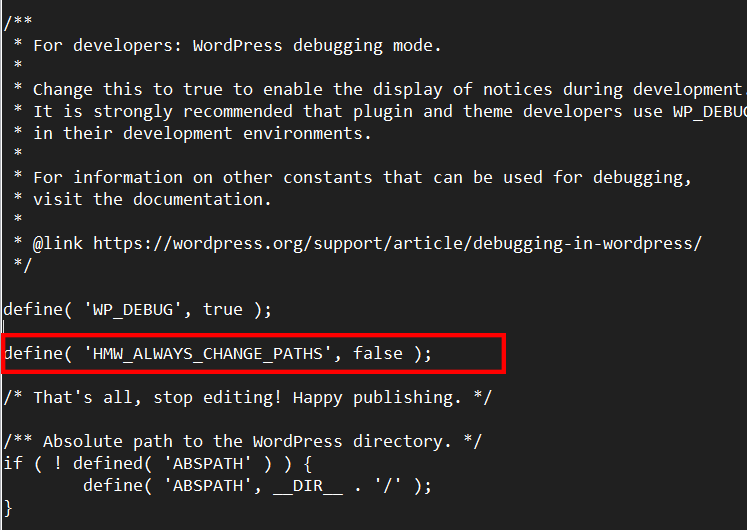
- Save the file.
- Go to WP Ghost > Change Paths in your WordPress dashboard.
- Click Save to apply the changes.
WP Ghost now applies your custom paths in both the frontend and the admin dashboard.
For full admin customization, combine this constant with the Admin Mapping add-on, which lets you change URL parameter names, parameter values, and visible text in the admin dashboard. Together, they provide complete admin-side WordPress identity removal.
Frequently Asked Questions
Why doesn’t WP Ghost change admin paths by default?
Many WordPress plugins and themes reference default paths in the admin area. Changing these paths can cause compatibility issues with admin-side functionality. WP Ghost keeps the admin area unchanged by default to maximize compatibility. Only enable admin path changes if you’ve tested and confirmed it works with your specific plugin and theme combination.
How do I revert if something breaks?
Remove or comment out the define('HMW_ALWAYS_CHANGE_PATHS', true); line in wp-config.php. The admin dashboard immediately reverts to using default WordPress paths. Frontend path changes continue working normally.
Where can I find all WP Ghost constants?
See the WP Ghost Constants Reference for all available wp-config.php constants including priority loading, dynamic files, image hiding, permissions, and more.
Does WP Ghost modify WordPress core files?
No. The constant is added to wp-config.php, which is your site’s configuration file, not a WordPress core file. WP Ghost uses WordPress hooks to change paths dynamically without modifying any core files.
Related Tutorials
Admin path customization and WP Ghost constants:
- Admin Mapping Add-on – Customize URL parameters and text in the admin dashboard.
- WP Ghost Constants Reference – All available wp-config.php constants.
- Change WordPress Paths – Main frontend path security configuration.
- Backup and Restore Settings – Back up before making changes.