
Installing security plugins in WordPress is essential to protecting your website from potential threats and vulnerabilities. Various security plugins for WordPress can help reinforce your website’s security measures. In this guide, we will explore the process of installing security plugins in WordPress.
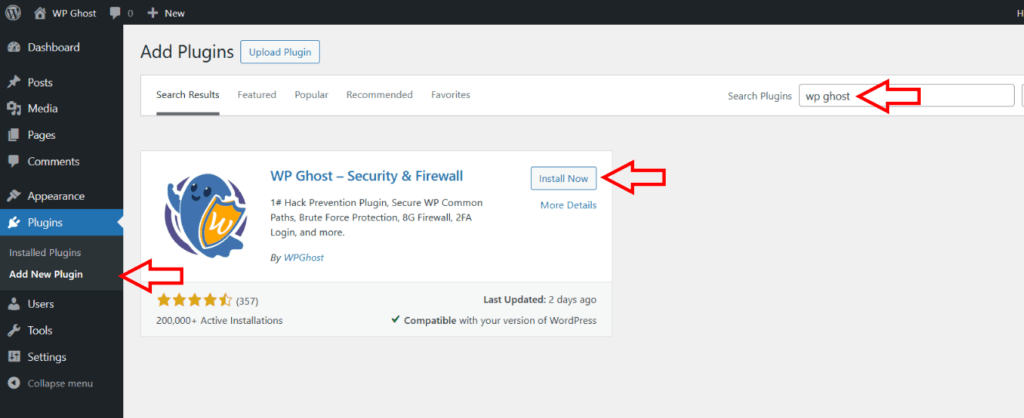
To install security plugins in WordPress, follow these steps:
Log In to Your WordPress Dashboard
To install plugins, log in to your WordPress admin area using your admin credentials. You can access the dashboard by appending “/wp-admin” to your domain name (e.g., https://domain.com/wp-admin).
Navigate to The Add New Plugin Section
Once logged in, go to the Plugins > Add New Plugin tab on the left-hand side of the dashboard and click on it. This will take you to the Plugins page, where you can manage and install plugins.
Search For the Security Plugin
In the search bar on the Add Plugins page, enter the name of the security plugin you’ve selected or use relevant keywords. WordPress will display a list of plugins matching your search query.
Install and Activate the Plugin
Locate your desired security plugin from the search results and click the Install Now button. WordPress will automatically install the plugin onto your website.
Once the installation is complete, you’ll see an Activate button. Click on it to activate the plugin. Activation is necessary before configuring and using the plugin’s security features.
Configure the Plugin Settings
After activation, you can usually access the settings of your security plugin from the Plugins tab in your WordPress admin area. It’s vital to configure the plugin according to your preferences and requirements.
Each security plugin will have its configuration process, so it’s advisable to consult the plugin’s documentation or support resources for guidance.
Regularly Update the Plugin
Security plugins often release updates to incorporate new features and address potential vulnerabilities. It’s crucial to stay current with these updates by regularly checking for plugin updates.
You can do this by visiting the Plugins page in your WordPress dashboard, where you will see a notification if updates are available for any installed plugins.
Schedule Periodic Security Scans
To ensure continuous protection, configure your security plugin to perform regular security scans, including malware scanning and vulnerability checks. This process allows the plugin to detect and identify potential threats or weaknesses on your website.
Remember, installing security plugins is just one part of a comprehensive security strategy for your WordPress site. Additional security measures, such as strong passwords, two-factor authentication, regular backups, and secure hosting, should also be implemented to maximize your website’s security.