
Events Log data is stored in two places: locally in your WordPress database and optionally on WP Ghost’s cloud servers. Local logs live in a dedicated database table (_hmwp_logs) and are retained based on the period you configure. Cloud logs are kept for 30 days, then permanently deleted, and can be exported in Excel format before expiration. Data is never shared with third parties and is not used for marketing. The cloud copy exists mainly so the activity log survives if someone compromises your site and tampers with the local database.
Local Storage (WordPress Database)
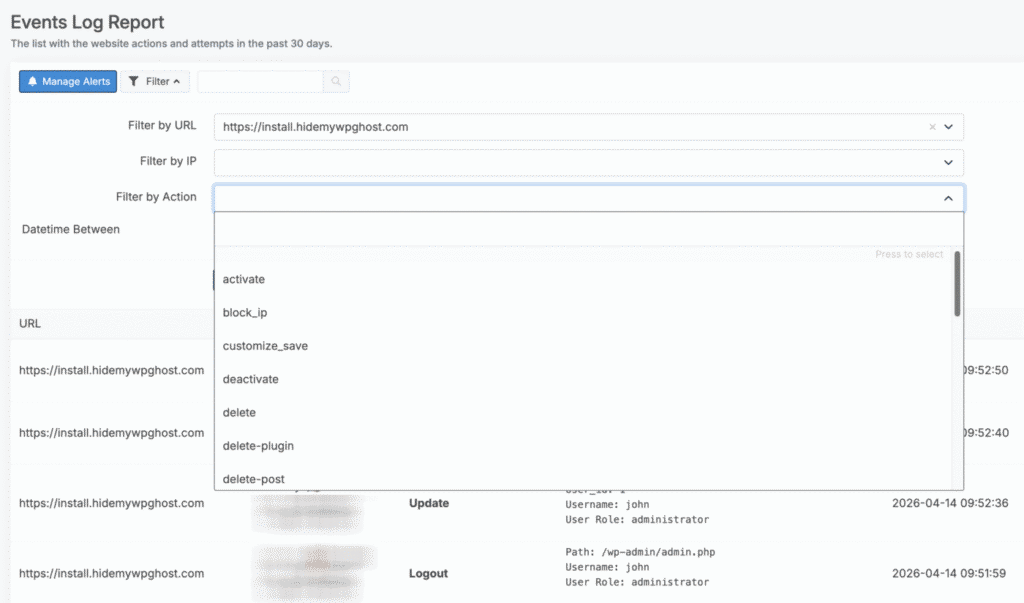
When you enable the Events Log at WP Ghost > Logs > Settings, events are recorded in a dedicated database table called _hmwp_logs inside your WordPress database. This is the primary storage location, and it is always active as long as logging is enabled. You control the retention period through the plugin settings, so logs can be kept for as long or as short as you need. Local logs are accessible from WP Ghost > Logs > User Events in your WordPress dashboard, and they can be filtered by user, action, date range, or keyword.
If you uninstall WP Ghost, the local log table is removed along with the rest of the plugin’s data. That is why the cloud copy exists as a backup.
Cloud Storage (WP Ghost Dashboard)
If you switch on Enable Cloud Storage for Events Log in the Logs settings, WP Ghost syncs a copy of events to the WP Ghost Dashboard. Cloud logs are retained for 30 days and then permanently deleted. The cloud copy contains the same information as the local report: action name, username, post ID, post type, post name, plugin name, attachment name, IP address, and timestamp.
Cloud storage exists mainly for tamper resistance. If your site is compromised and an attacker modifies the database, deactivates WP Ghost, or deletes the plugin entirely, the cloud copy preserves the activity log for forensic investigation. Cloud logs are also accessible from any device through the WP Ghost Dashboard, which is useful if you manage multiple sites from a single account.
Cloud logs can be exported in Excel format from the WP Ghost Dashboard at any point before the 30-day deletion. Event times in the cloud are stored in UTC-0, so convert to your local timezone when reviewing.
Local vs Cloud Storage at a Glance
| Aspect | Local Storage | Cloud Storage |
|---|---|---|
| Location | _hmwp_logs table in WordPress database | WP Ghost Dashboard servers |
| Retention | Configurable in WP Ghost settings | Fixed at 30 days |
| Survives plugin deletion? | No, removed with the plugin | Yes, kept in the cloud |
| Accessible from other devices? | No, only from the site’s admin | Yes, from any device via Dashboard |
| Exportable? | Through the WordPress admin | Excel export from Dashboard |
| Required for email alerts? | No | Yes, alerts need cloud data |
| Timezone | WordPress site timezone | UTC-0 |
What Data Is Collected
The Events Log records action names (login, logout, plugin activation, post deletion, settings changes, and similar dashboard activity), post IDs and types, usernames, post names, plugin names, attachment names, IP addresses, and timestamps. Each piece of information is saved only when a user triggers an action, nothing is collected passively. The data is never shared with third parties and is never used for marketing purposes. For the full privacy details, see the WP Ghost GDPR Compliance page.
WP Ghost also displays a notification in the plugin sidebar when Cloud Storage is active, so users know their activity is being sent to the cloud. This keeps the data flow transparent and helps with GDPR compliance.
Frequently Asked Questions
Is the Events Log a free feature?
No. The Events Log is a Premium feature. The free version of WP Ghost includes path security, firewall, brute force protection, 2FA, and security headers, but not user activity logging. The free Security Threats Log shows the last 20 entries, while Premium gives you full history and unlimited entries.
Do I need to enable cloud storage to use the Events Log?
No. Local storage is always active when the Events Log is enabled. Cloud storage is optional and only needed if you want tamper-proof backups, multi-device access, or email alerts. You can use the Events Log entirely locally if you prefer to keep all data on your own server.
What happens to cloud logs after 30 days?
They are permanently deleted from WP Ghost’s cloud servers. This is automatic and cannot be extended. If you need long-term records, export the log in Excel format from the WP Ghost Dashboard before the 30-day window ends, or rely on local storage which has a configurable retention period.
Is my cloud data shared with anyone?
No. Event log data is not shared with third parties and is not used for marketing. It is stored only to provide you with your site’s activity report and to support features like email alerts. Full privacy terms are in the WP Ghost GDPR Compliance page.
How do I export cloud logs?
Log in to your WP Ghost Dashboard, open the User Events section, filter the logs if needed, and click the Export button. You get an Excel file with the complete filtered data ready for archiving or audit review.
Will turning off the Events Log delete existing logs?
No. Disabling the Log Users Events option just stops new events from being recorded. Existing local logs stay in the database until the retention period expires or you manually clear them. Existing cloud logs stay on the Dashboard until the 30-day window closes.
Is the Events Log the same as the Security Threats Log?
No, they are complementary. The Events Log tracks actions by logged-in users (content edits, plugin changes, settings modifications). The Security Threats Log tracks malicious requests from external visitors (blocked SQL injections, brute force attempts, firewall hits). Together they give you full visibility into both internal activity and external threats.
Does WP Ghost modify WordPress core files?
No. The Events Log operates entirely through WordPress hooks that monitor actions. Local logs use a dedicated database table (_hmwp_logs) that WP Ghost creates and manages on its own. Cloud logs are sent to the Dashboard via API. No WordPress core files are modified, and uninstalling WP Ghost removes all plugin data cleanly.